
Webpage to PDF guide
Learn to save webpages as PDF with cloud conversion or the browser extension. Compare modes, follow illustrated settings guides, and troubleshoot exports.
This webpage to PDF guide explains how to turn a public webpage into a downloadable document. Start with the online URL to PDF converter, choose how much control you need, and let the remote browser load the page before the PDF is prepared in your browser. You can save a webpage as a PDF without installing an extension or sending your personal browser session.
Start on the home page
You can use Quick Convert and Custom Convert without an account. Visual Editor requires you to sign in.
Choose the service, then the output
Cloud conversion opens a public URL in a remote browser. Local extension conversion uses a page in your own browser, including content you have signed in to view or expanded manually. Both offer Quick, Custom, and Visual, but their access rules, entry points, and result views differ.
| Your goal | Where to start |
|---|---|
| Preserve a landing page's appearance without selectable text | Quick, for a continuous image-based PDF. |
| Print an article, copy text, or follow links | Custom; check paper size and rendering style first. |
| Hide a banner or adjust an element before export | Visual; edit first, then generate the PDF. |
| Save a signed-in page or export one selected element | The extension guide, covering local conversion and selected-node export. |
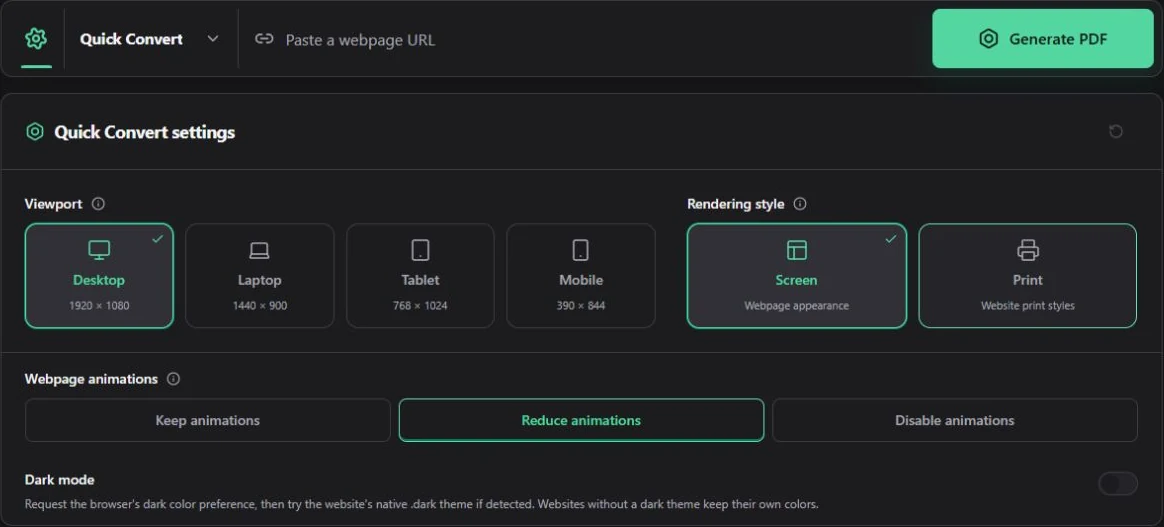
This is the actual website in English. The settings icon sits to the left of the URL field. Choose a mode, then expand its settings. The selected values are examples from this capture, not changes to your own configuration.
Convert a webpage to PDF
Paste the full webpage address
Use an address that begins with https:// or http://. The page must be reachable without your personal browser session, saved cookies, or a private network connection.
Choose a conversion mode
Use Quick Convert for a faithful full-page capture, Custom Convert when the PDF needs a paper size or document controls, and Visual Editor when you want to remove or restyle page elements first.
Review and download
Keep the page open while the task is running. When the webpage to PDF result is ready, check the preview and download the file. Custom and Visual results also need a final document-processing step in your browser before the file is saved.
Pick the right mode
Quick Convert
Capture the complete webpage as one continuous PDF with only the essential display choices.
Custom Convert
Choose page layout, loading, cleanup, headers, watermarks, security, and metadata.
Visual Editor
Open an interactive preview, hide unwanted elements, adjust styles, and then generate the PDF.
| Mode | Best for | Account required | Output style |
|---|---|---|---|
| Quick | Articles, receipts, references, and pages you want to keep as they appear | No | One continuous full-page capture |
| Custom | Reports, handouts, and documents that need predictable paper formatting | No | Paginated PDF with document controls |
| Visual | Pages that need manual cleanup before export | Yes | Edited page followed by PDF formatting |
How webpage to PDF conversion works
The service opens the URL in a remote browser. It can wait for delayed content, remove common overlays when requested, capture the rendered page, and prepare the source needed for the selected mode. The browser session is isolated from your own browser, so your local cookies, saved passwords, and extensions are not sent with the request.
Conversion time is based on browser usage, not on a fixed number of files. Quick and Custom charge for successful conversions; Visual Editor also records active editing time. Anonymous visitors receive 10 minutes each day, verified free accounts receive 30 minutes, and Pro accounts receive 60 minutes. Daily time resets at 00:00 UTC.
Pages can look different at different widths
Responsive websites rearrange navigation, columns, images, and text according to the selected viewport. If a result looks too narrow or uses a mobile menu, choose a wider viewport and try again.
Where to go next
- Use the Quick URL to PDF guide for a continuous full-page capture.
- Follow the custom webpage to PDF guide for paper size, margins, headers, security, and metadata.
- Open the Visual Editor guide when you need to change the rendered webpage before export.
- Read Accounts and conversion time before choosing a plan.
- Use URL to PDF troubleshooting when a page is incomplete, blocked, or formatted unexpectedly.
- Visit PDF conversion support if the suggested fixes do not solve the webpage to PDF problem.