
Custom Convert
An illustrated guide to Custom webpage-to-PDF settings: paper, margins, loading, cleanup, watermarks, and passwords, with preview and pagination explained.
The remote-browser, sign-in, and allowance rules below describe cloud conversion on the website. To save an open tab with the development extension, including local Custom Convert, see the browser extension guide.
Custom Convert is the custom webpage to PDF workflow for creating a conventional, paginated PDF from a public URL. It is intended for reports, articles, handouts, reference copies, and files that need a particular paper size, margin, page range, header, watermark, password, or metadata record.
During a Custom Convert job, the remote browser first opens and prepares the webpage. It then creates a source PDF using your layout choices. Your browser completes the custom PDF work, including selecting pages, adding headers and watermarks, applying security, and writing metadata. Keep the tab open until the final file is ready.
Create a custom PDF from a webpage
Select Custom Convert
Choose Custom Convert from the mode menu and enter the complete public http:// or https:// URL.
Configure the source page
Open Settings. Start with Page layout, then adjust Page loading and Page cleanup only when the source page needs them.
Configure the finished document
Use PDF content, Watermark, Security, and Metadata for options applied to the resulting PDF.
Generate and review
Select Generate PDF and keep the tab open during remote rendering and local document processing. Review page breaks, clipped content, headers, links, and security before sharing the file.
Default configuration
The Custom Convert reset controls restore the following practical starting point for a custom PDF:
| Group | Default |
|---|---|
| Layout | Viewport scaling, Desktop 1920 × 1080, device scale 1×, A4 portrait, 12 mm margins, webpage scale 100%, Screen rendering, reduced animations, dark mode off, backgrounds on |
| Loading | 30-second navigation timeout, no extra wait, deferred-content loading on, 3 passes, 100 ms step delay, 5-second timeout per pass |
| Cleanup | Cookie prompts, ads, popups, floating widgets, and fixed elements all targeted for removal |
| PDF content | All pages, links preserved, no header, no footer |
| Watermark | Off; prepared defaults are single, centered, above content, 48 pt, 20% opacity, −35°, #64748b |
| Security | Off; prepared permission defaults allow high-resolution printing, copying, annotations, and forms |
| Metadata | Title uses the webpage title when left blank; other fields and document language are unset |
The summary column shows the current value of every group. Its reset button resets only that group; it does not reset the other sections or the URL.
Page layout
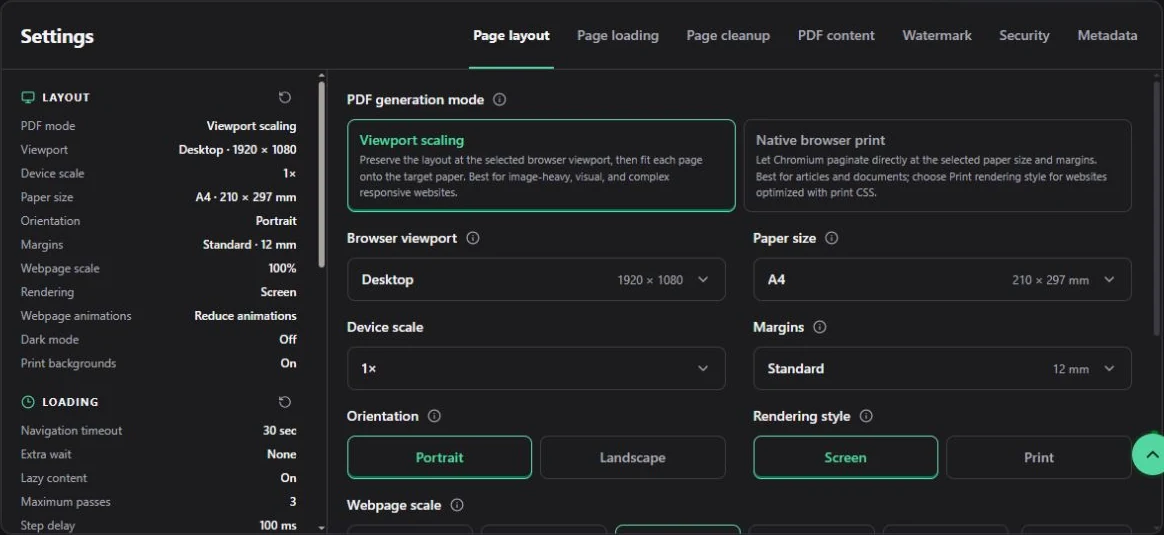
The actual Custom Convert layout panel, shown in English. Viewport controls webpage layout; paper and margins control PDF pagination.
Custom Convert separates the responsive browser viewport from the paper used by the custom PDF. Set the webpage layout first, then choose how that layout should fit the finished pages.
PDF generation mode
| Option | Description | When to use it |
|---|---|---|
| Viewport scaling | Preserves the webpage layout at the selected browser viewport, then fits the captured content to the target paper. This is the default. | Visual, image-heavy, and responsive pages where maintaining the browser composition matters. |
| Native browser print | Lets Chromium paginate directly at the selected paper size and margins. | Articles and document-like pages, especially when combined with Print rendering on a site with good print CSS. |
These custom PDF generation modes can produce different line wrapping and page breaks. If a table is clipped or an article breaks badly, test the other mode before making many smaller adjustments.
Browser viewport
The viewport controls the responsive layout of the source website. It is separate from the PDF paper size.
| Preset | Size | Notes |
|---|---|---|
| Desktop | 1920 × 1080 | Default; suitable for wide desktop layouts and tables. |
| Laptop | 1440 × 900 | A more compact desktop layout. |
| Tablet | 768 × 1024 | May stack columns and collapse navigation. |
| Mobile | 390 × 844 | Requests the narrow phone layout. |
| Custom | Width and height entered in pixels | Width accepts 320–8192 px; height accepts 320–12000 px. Extreme sizes can trigger layouts the site was never designed to support. |
Device scale
Choose 1×, 1.25×, 1.5×, or 2×. Device scale changes the browser's pixel density. A larger value may improve raster detail but can increase image memory and file size; it does not make the PDF paper larger. The default is 1×.
Paper size
Available paper sizes are Letter (216 × 279 mm), Legal (216 × 356 mm), Tabloid (279 × 432 mm), Ledger (432 × 279 mm), A0, A1, A2, A3, A4, A5, A6, and Custom. A4 is the default.
For Custom size, width and height each accept 20–2000 mm. Orientation is applied separately, so check the output dimensions after switching between portrait and landscape.
Margins
| Preset | All sides |
|---|---|
| None | 0 mm |
| Narrow | 6 mm |
| Standard | 12 mm; default |
| Wide | 20 mm |
| Custom margins | Set top, right, bottom, and left independently from 0–100 mm |
The horizontal margins must leave printable width, and the vertical margins must leave printable height. Headers, footers, and unusually large margins can reduce the useful content area, so inspect pages for overlap and excessive wrapping.
Orientation
Portrait is the default. Landscape gives wide tables, charts, and slides more horizontal space. Orientation changes the paper and does not force the website into a desktop responsive layout; use the viewport for that.
Rendering style
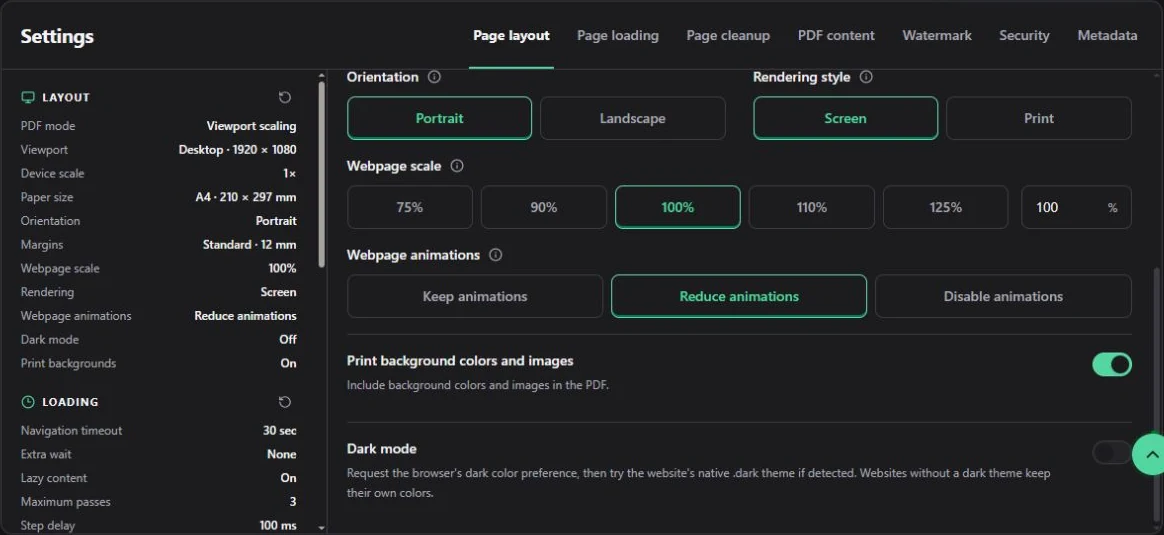
Screen and Print rendering, webpage scale, animation, background, and dark-mode settings.
Screen uses the website's ordinary browser CSS and is the default. Print applies the website's print stylesheet, which may remove navigation, change colors, or reflow content. Print only helps when the website provides useful print rules.
Webpage scale
Scale the webpage content from 10% to 200%. The panel offers 75%, 90%, 100%, 110%, and 125% shortcuts; 100% is the default. Lower values fit more content but reduce text size. Higher values improve readability but cause more wrapping and page breaks.
Print background colors and images
Enabled by default. Turn it off for a simpler file or lower ink use. Some designs use background colors to carry contrast, so disabling backgrounds can make text or controls difficult to read.
Webpage animations
Reduce animations is the default. It asks sites that support reduced motion to use a steadier presentation. Keep animations preserves normal animation behavior; Disable animations attempts to reduce changes during capture. Script-driven animation, video, and canvas content may not stop completely, so check the result before downloading.
Dark mode
Off by default. This sends a dark color-scheme preference to sites that support it. It does not force a dark palette and cannot override a theme stored in the site's own account or cookies.
Page loading
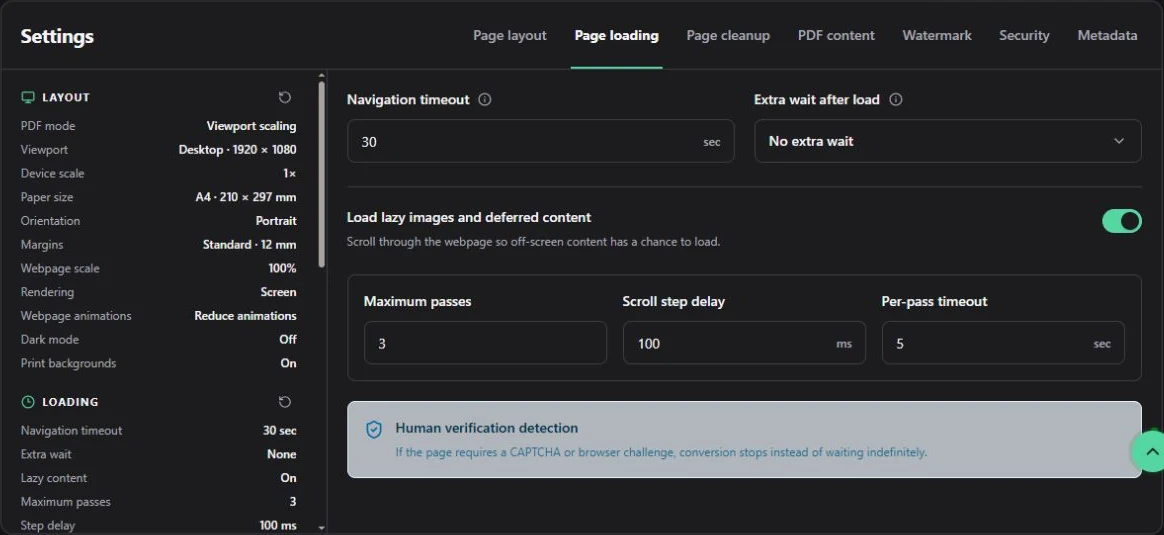
The actual loading controls, shown in English. Extra wait helps with delayed charts; deferred-content loading helps with images that appear after scrolling.
Custom Convert loading controls decide how long the URL to PDF job waits and how it discovers content that appears only after scrolling.
| Setting | Default and range | Description and caution |
|---|---|---|
| Navigation timeout | 30 sec; 5–60 sec | Shared budget for opening the document and waiting for resources. Navigation failure stops conversion; slow resources can time out after the document opens and allow it to continue. It cannot bypass a CAPTCHA, login, or blocked request. |
| Extra wait after load | None; choices are 0, 1, 2, 5, or 10 sec | Waits after the page reports that it is ready. Use it for charts, client-rendered sections, or late image replacement. It adds directly to processing time. |
| Load lazy images and deferred content | On | Scrolls through the page so off-screen content can load. Disable it when scrolling triggers unwanted animation, endless feeds, or expensive optional content. |
| Maximum passes | 3; 1–10 | Limits how many deferred-content passes are attempted. More passes can reveal more content but take longer. Only applies when deferred loading is on. |
| Scroll step delay | 100 ms; 0–5000 ms | Pause between scroll steps. Increase it when images start loading only after an element remains visible briefly. |
| Per-pass timeout | 5 sec; 1–60 sec | Maximum time for one deferred-loading pass. It is not the timeout for the entire conversion. |
If the page presents a CAPTCHA or browser challenge, conversion stops rather than waiting indefinitely. Loading settings cannot solve human verification.
Page cleanup
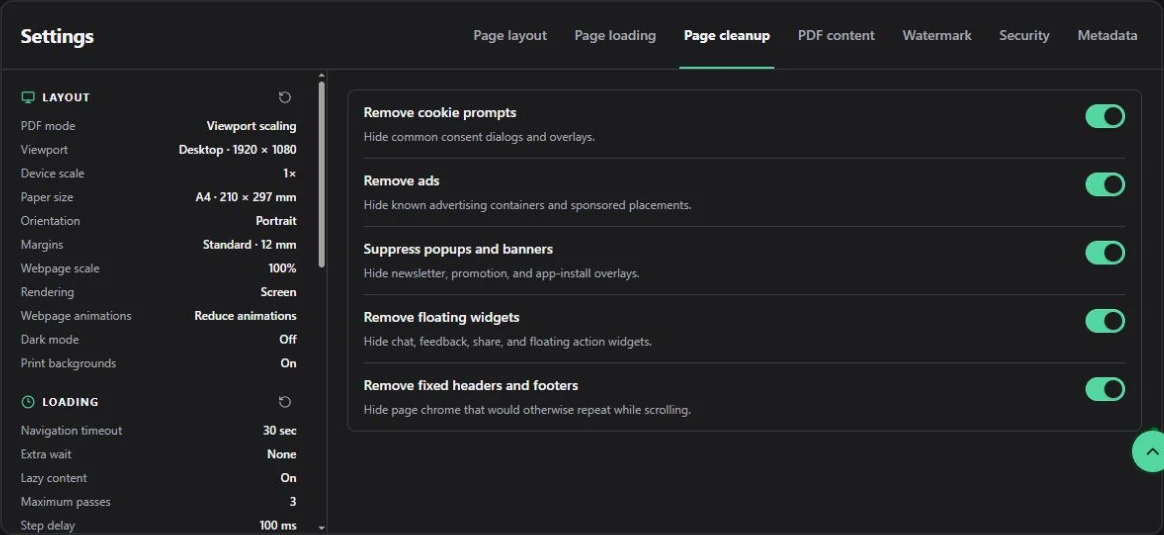
The actual cleanup panel, shown in English. Disable the category responsible for missing content before turning off every cleanup option.
Custom Convert enables all five webpage to PDF cleanup switches by default.
| Setting | What it targets | Caution |
|---|---|---|
| Remove cookie prompts | Common consent dialogs and overlays | A custom consent component may remain, and a content panel resembling a dialog may be hidden. |
| Remove ads | Known advertising containers and sponsored placements | Sponsored content that is part of the material you need may be removed. |
| Suppress popups and banners | Newsletter, promotion, and app-install overlays | Inline promotions are not always distinguishable from ordinary content. |
| Remove floating widgets | Chat, feedback, share, and floating action controls | Disable it when a floating control is itself part of the record you need. |
| Remove fixed headers and footers | Bars that remain fixed while the page scrolls | A fixed navigation or status bar may contain useful context. |
Cleanup is heuristic and does not edit the source website. If automatic cleanup removes too much, switch off the relevant category. If it misses one exact element, use Visual Editor.
PDF content
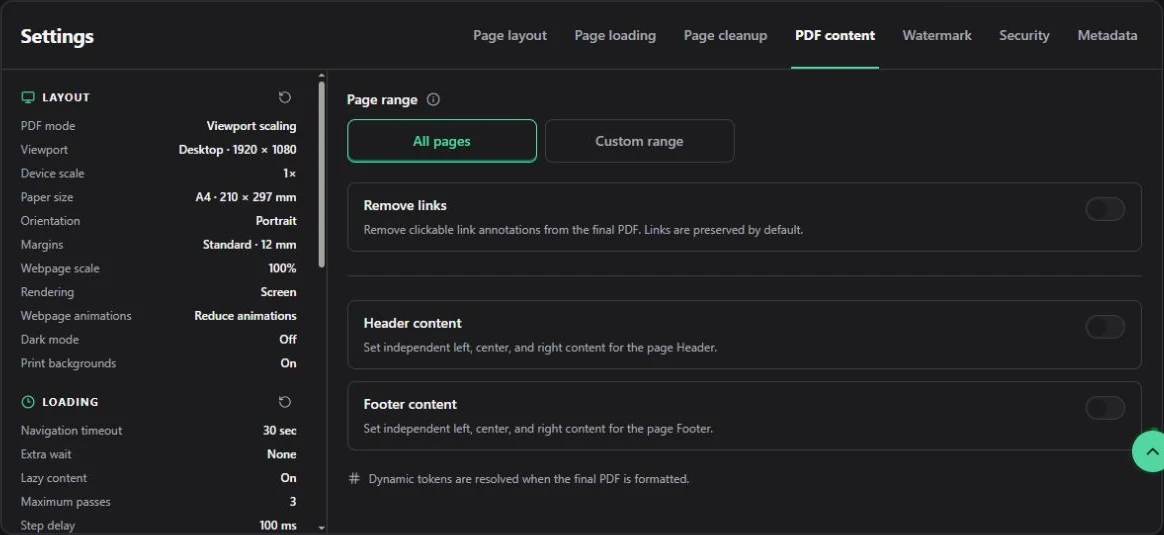
PDF content settings for page ranges, links, headers, and footers.
After Custom Convert creates the source pages, these custom PDF controls decide which pages and links remain in the final document.
Page range
All pages is the default. Choose Custom range and enter values such as 1-3, 5, 8-10 to keep selected pages. Page numbers start at 1; ranges must be ascending. The range applies after the source PDF is generated, so check the preview before deciding which pages to keep.
Remove links
Off by default, so supported clickable link annotations are preserved. Enable Remove links when distributing a static copy that should not contain clickable destinations. Removing links does not remove the visible link text.
Header and footer
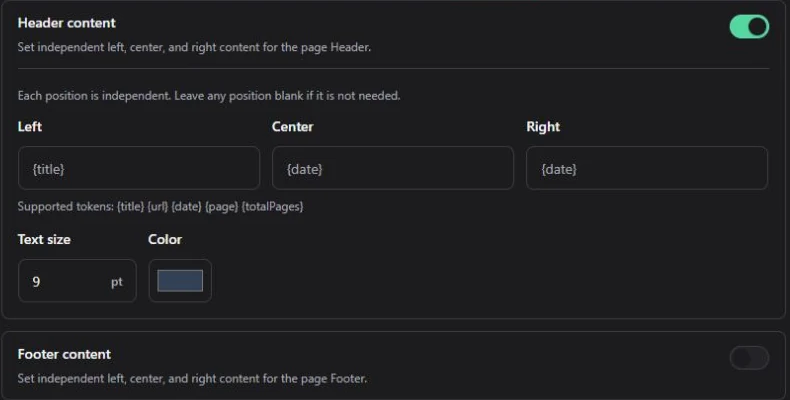
Header settings expanded to show left, center, and right content, dynamic tokens, font size, and color.
Headers and footers are independently disabled by default. Each provides Left, Center, and Right text fields; leave a position blank when it is not needed. You can also set text size from 6–24 pt and choose a color. The prepared default is 9 pt and #334155.
The following dynamic tokens are supported:
| Token | Replaced with |
|---|---|
{title} | The resolved document or webpage title |
{url} | The source webpage URL |
{date} | The document-generation date |
{page} | Current output page number |
{totalPages} | Total number of output pages |
Tokens are resolved while the final PDF is formatted. Long text can collide with another position or overlap page content, especially with narrow paper or large type. Keep each field short and review several pages.
Watermark
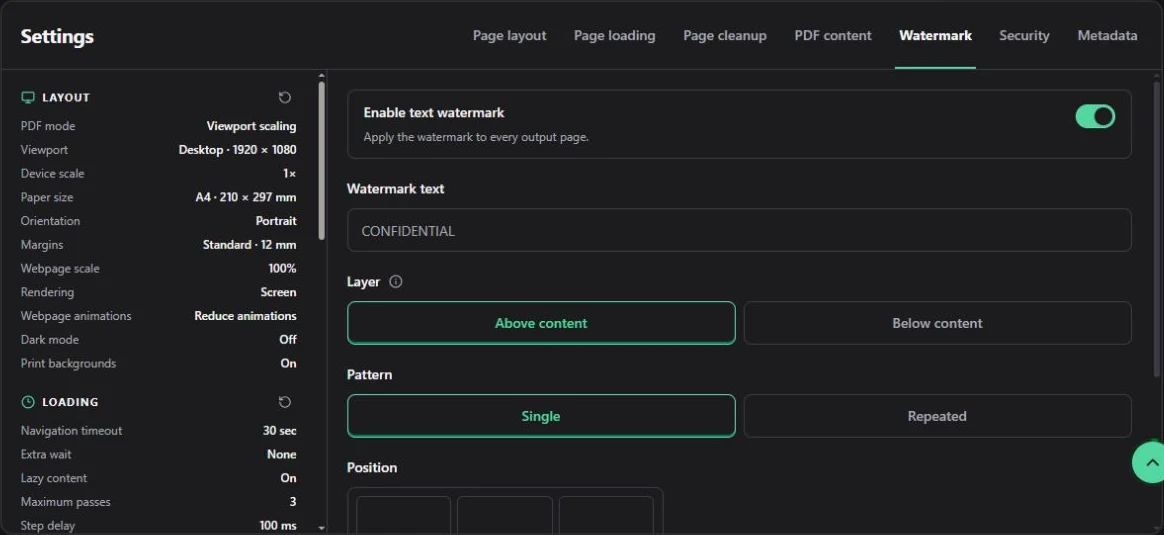
Text watermark settings after enabling the option: text, layer, and single or repeated pattern.
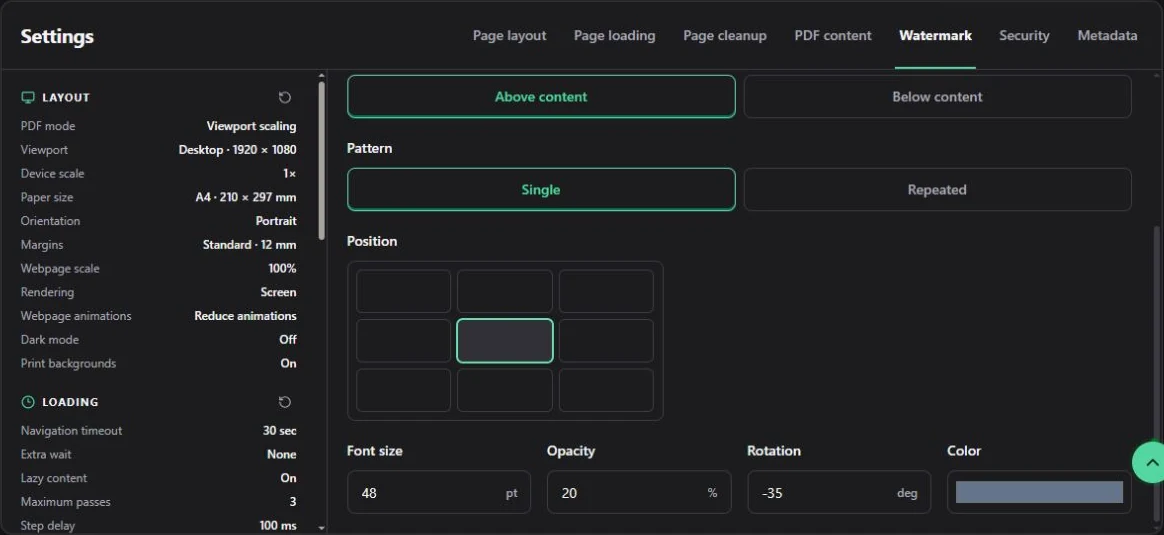
The lower watermark controls set position, font size, opacity, rotation, and color.
Enable text watermark to apply a watermark to every output page in the Custom Convert result. Watermark text is required when the custom PDF feature is on and accepts up to 500 characters.
| Setting | Default and range | Description |
|---|---|---|
| Layer | Above content | Above keeps the watermark visible. Below places it behind the original page, where opaque backgrounds or images may hide it completely. |
| Pattern | Single | Single places one mark; Repeated tiles it across the page. |
| Position | Center | For a single mark, choose one of nine top, center, or bottom positions. Position is not used by the repeated pattern. |
| Font size | 48 pt; 8–200 pt | Controls watermark text size. |
| Opacity | 20%; 1–100% | Low values are subtle; high values can obscure the document. |
| Rotation | −35°; −180° to 180° | Rotates the watermark text. |
| Color | #64748b | Sets the watermark color. |
Security and permissions
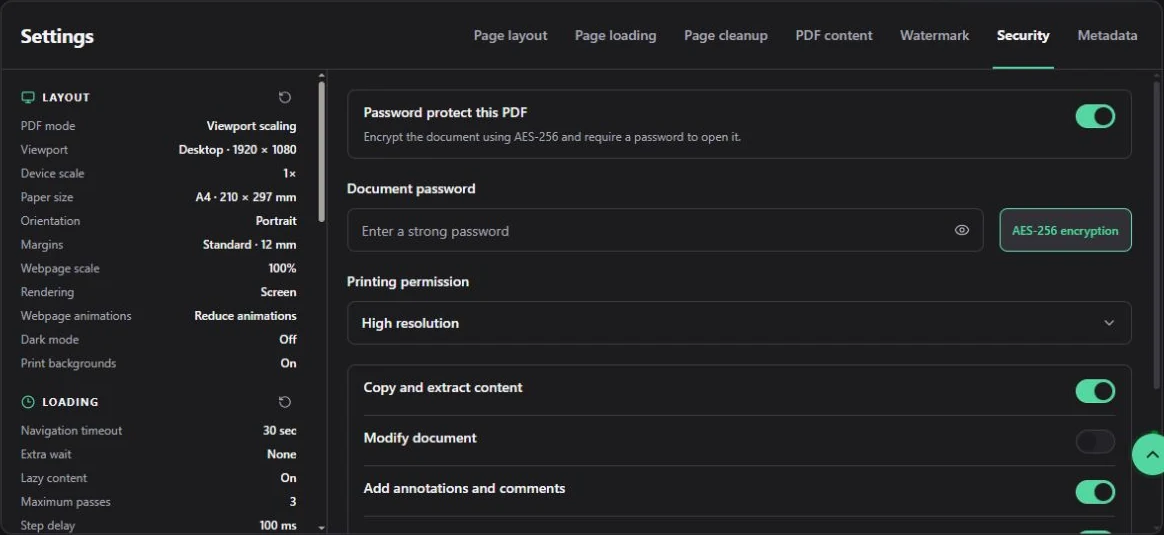
PDF password protection and printing permissions. The password field is empty in this example.
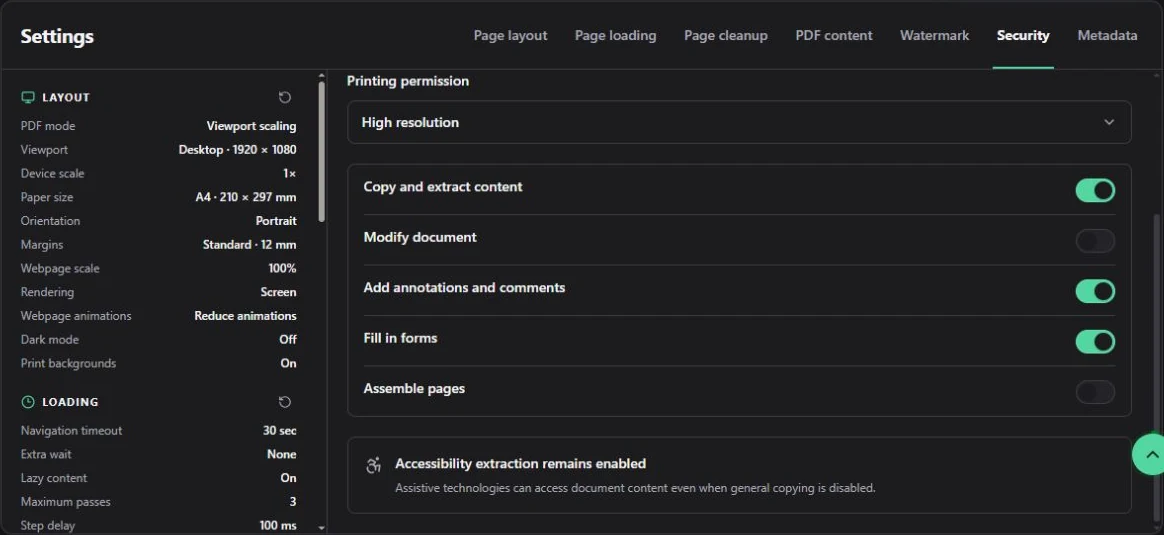
Permissions for copying, editing, annotations, forms, and page assembly.
Enable Password protect this PDF to encrypt the final Custom Convert document with AES-256. A password is required when custom PDF security is enabled and can contain up to 256 characters. Store it safely; the service cannot recover a forgotten document password.
| Setting | Prepared default | Meaning |
|---|---|---|
| Printing permission | High resolution | Choose Not allowed, Low resolution only, or High resolution. |
| Copy and extract content | Allowed | Controls ordinary copying and extraction. |
| Modify document | Not allowed | Controls general document modification. |
| Add annotations and comments | Allowed | Controls annotation and comment tools. |
| Fill in forms | Allowed | Controls filling interactive form fields when present. |
| Assemble pages | Not allowed | Controls inserting, rotating, or rearranging pages. |
Accessibility extraction remains enabled so assistive technologies can access document content even when general copying is disabled. PDF applications differ in how they present or enforce permissions, so verify the result in the readers your recipients use.
Document metadata
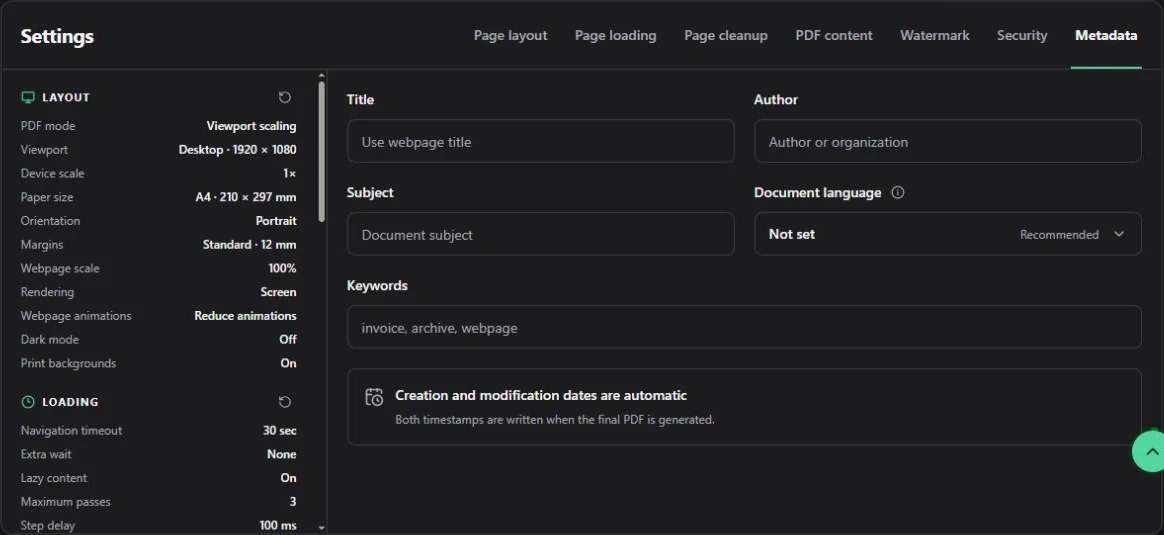
PDF metadata fields for title, author, subject, keywords, and document language.
Custom Convert can write searchable document properties after the webpage to PDF rendering is complete.
| Setting | Default | Description and notes |
|---|---|---|
| Title | Uses the webpage title when blank | Sets the title shown in PDF properties and some search results. |
| Author | Not set | Use a person, team, or organization name. |
| Subject | Not set | A short description of the document's purpose or topic. |
| Keywords | Not set | Search terms, commonly separated with commas. |
| Document language | Not set | Helps screen readers and search tools interpret the PDF. It does not translate the webpage. |
The language menu includes common language tags and a Custom language tag option. Custom values must be valid BCP 47 tags such as en-US, zh-Hans, or sr-Latn. Creation and modification timestamps are written automatically when the final PDF is generated.
Webpage preview and final PDF are separate
Custom Convert may display a long webpage as several adjoining screenshot tiles. That preview helps you check image loading and overlays. The browser generates the final PDF separately using the selected paper, margins, and generation mode, before document options are applied. It does not simply slice the preview into A4 images.
A complete webpage preview therefore does not guarantee good page breaks. Check split tables, headers, footers, and backgrounds in the PDF preview too. Try selecting text and following links. Text inside images and canvas content does not become searchable just because you chose Custom.
Starting points for articles and wide tables
For a custom PDF of an article, start with A4 portrait and standard margins. Try native browser printing with Print when the site has a useful print stylesheet; return to Screen if styling disappears. For wide tables, try landscape first, then adjust the viewport or scale one setting at a time.
What happens when the wait expires
Cloud navigation and resource loading share the navigation timeout budget. If the document cannot open, the task fails. If it opens but some resources never finish, conversion continues when that budget expires. Configured extra wait and deferred-content loading follow. A longer wait cannot fix a login screen, CAPTCHA, or content that is not there.
Recommended adjustment order
For a predictable Custom Convert result, build the custom PDF in the following order:
- Choose the generation mode, viewport, paper, orientation, and margins.
- Generate once with the default loading and cleanup behavior.
- If content is missing, adjust loading. If content is hidden incorrectly, adjust cleanup.
- Confirm pagination before choosing a page range or adding headers and footers.
- Add a watermark, security, and metadata after the source pages look correct.
Changing one group at a time makes it easier to identify which setting changed the output.
Custom Convert still requires a public webpage
The remote browser does not share your local login, cookies, extensions, or private network access. A login-protected page, private dashboard, paywall, CAPTCHA, or one-time link may fail or show different content.
Usage and failed conversions
Custom Convert checks that at least 30 seconds of conversion time remains before it opens the remote browser. A successful conversion deducts the browser session time actually used. A failed conversion is recorded but does not consume conversion time. See Accounts and usage for allowances and reset rules.
Related custom PDF guides
- Compare this workflow with the Quick URL to PDF guide when a continuous full-page image is more useful than a paginated PDF.
- Use the Visual webpage editor when the custom webpage to PDF needs manual element removal or layout changes before export.
- Follow URL to PDF troubleshooting when Custom Convert produces missing content, blocked pages, or unexpected page breaks.
- Review conversion time and account allowances, then return to the online webpage to PDF converter when you are ready to create the custom PDF.