
Quick Convert
Keep the look
Convert a URL to PDF as a full-page snapshot. Save the webpage’s visual appearance for reference or sharing.
Online webpage converter
Convert a URL to PDF online and save full webpages for reading or sharing. Customize page size, margins, and orientation before downloading your PDF.
Keep the look
Convert a URL to PDF as a full-page snapshot. Save the webpage’s visual appearance for reference or sharing.
Adjust the layout
Set the page size, margins, and orientation. Convert the webpage to PDF with a layout suited to reading or printing.
Choose what stays
Preview the webpage and hide unwanted elements. Then adjust the PDF layout and export only the content you want to keep.
Webpage to PDF extension
The extension converts the webpage already open in your browser, including content you have signed in to view. Quick, Custom, and Visual run locally, with progress, PDF preview, and downloads in the side panel.
Available on the Chrome Web Store
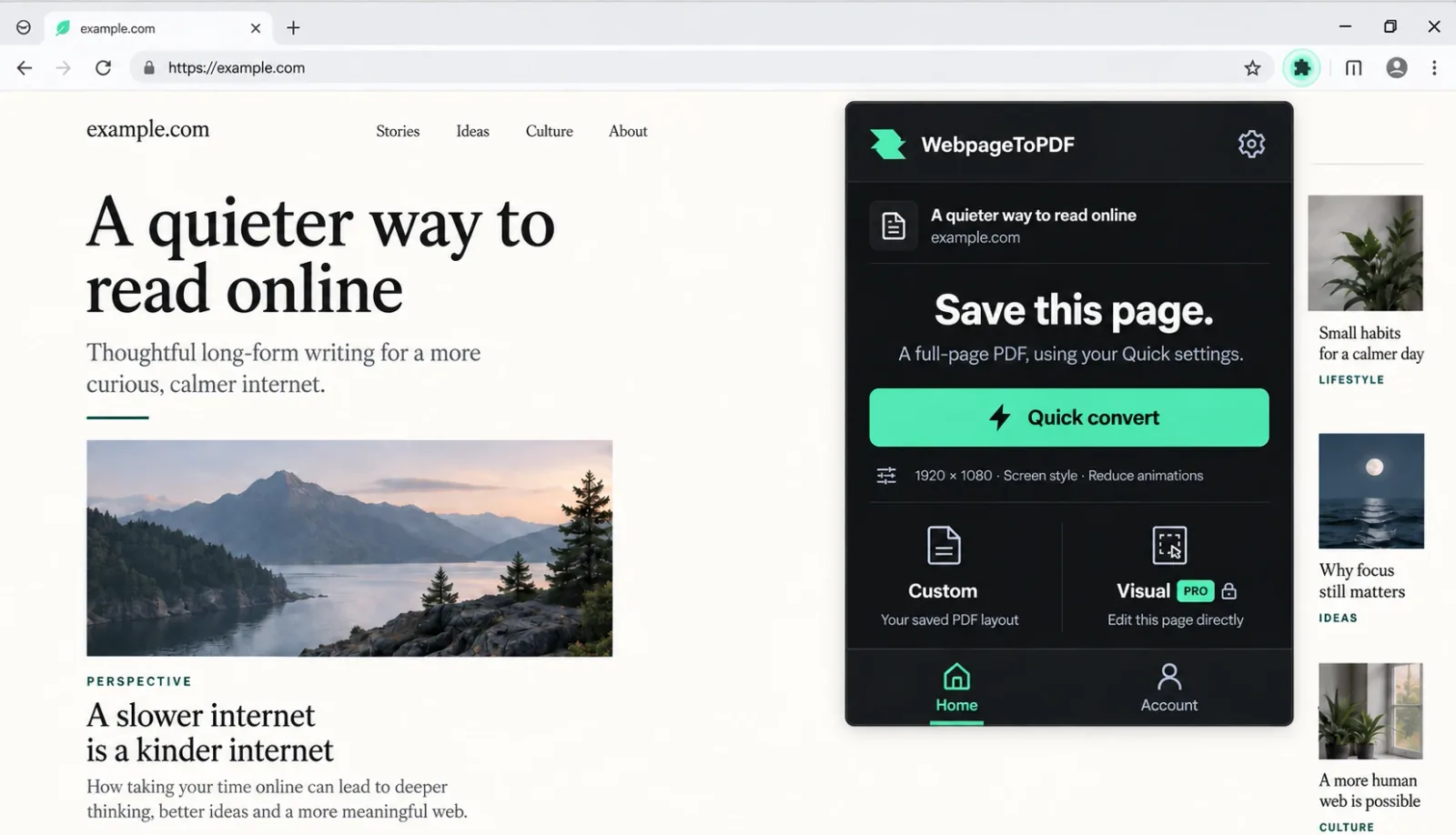
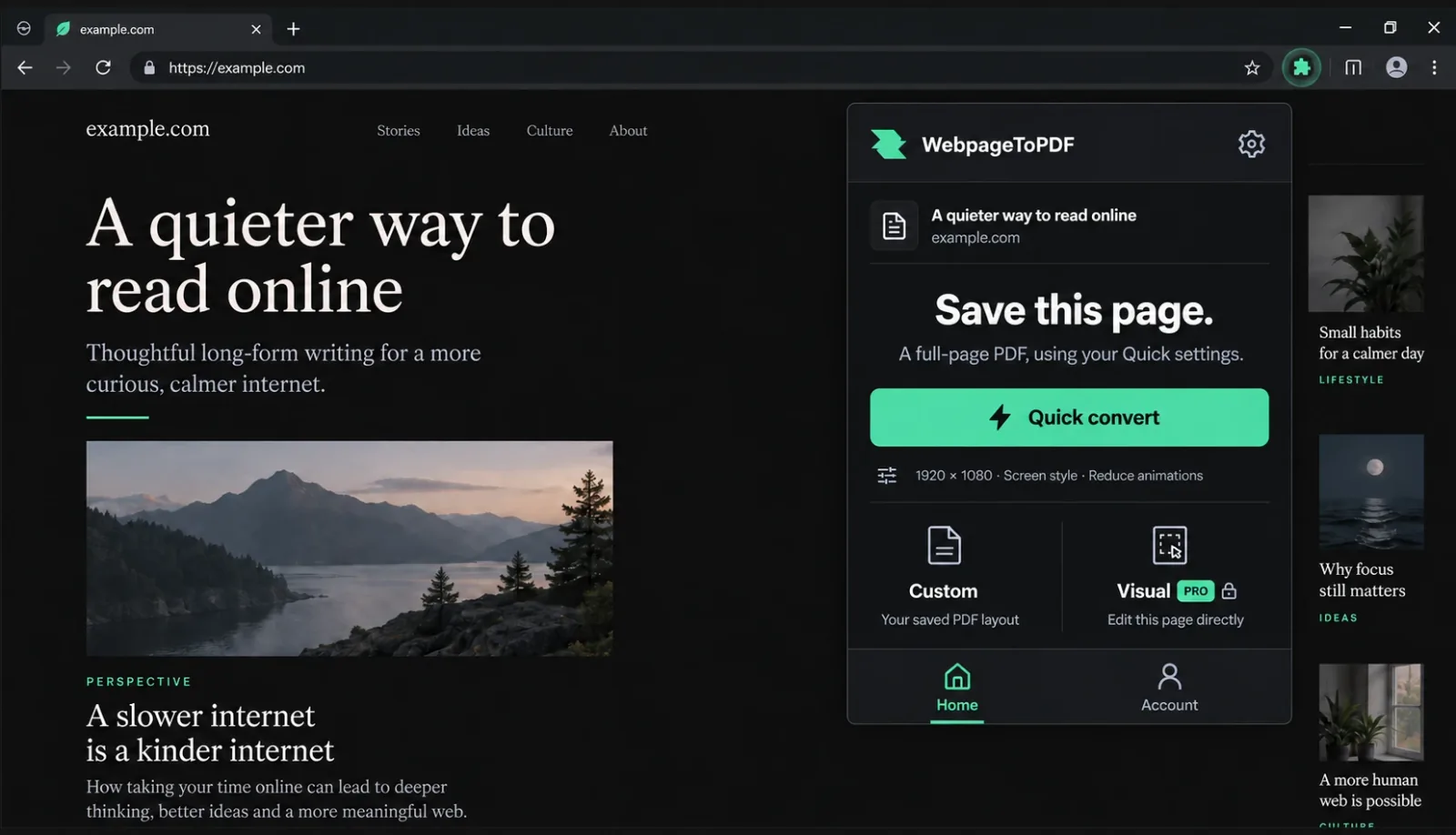
Enter the public HTTP or HTTPS address of the webpage you want to convert to PDF.
Use Quick Convert, configure a print layout, or open the Visual Editor to remove page elements.
Follow the conversion progress, review the result, and save the finished PDF to your device.
Three ways to convert
Need to turn a webpage into a PDF? These guides explain the three conversion modes, the settings that matter, and the type of PDF each one creates. Choose Quick Convert for a full-page capture, Custom for a paper-based document, or Visual Editor when you need to clean up the webpage before export.
Quick Convert guide
Quick Convert is the fastest way to convert a public URL to PDF. It captures the visible webpage from top to bottom and saves it as a continuous, image-based document. Use it when the appearance of the page matters more than paper size, selectable text, or page breaks.
Copy the full HTTPS address of the page, paste it into the URL field, and choose Quick Convert from the mode menu. Select Generate PDF when you are ready. There is no browser extension to install, and you do not need to upload an HTML file or copy the page source. The converter opens the URL in a remote browser and captures the rendered page.
The URL must be publicly accessible. The remote browser does not receive the cookies, passwords, or signed-in session from your device. Pages behind a login, CAPTCHA, private network, or other access check may not load correctly. A simple test is to open the URL in a private browser window. If the content appears there without signing in, the online webpage to PDF converter is more likely to reach it too.
Open the Quick settings panel to choose a desktop, laptop, tablet, or mobile viewport. The viewport controls the size of the remote browser before capture. Because responsive websites rearrange navigation, columns, images, and text at different widths, the same URL can produce noticeably different results.
Desktop is a sensible default for wide pages and most landing pages. Laptop gives you a slightly narrower layout. Tablet and mobile are useful when you want to save the responsive version of a page or check how it reads on a smaller screen. These presets change the page width; they do not emulate a particular device, operating system, touch interface, or mobile login session.
Screen uses the website’s normal browser styles and is usually the right choice when you want the PDF to look like the page on screen. Print asks the website to apply its print CSS before capture. Depending on the site, that may remove navigation, simplify colors, resize text, or rearrange sections. The result is still a continuous full-page PDF rather than a paginated browser printout.
Dark mode asks the website to use its dark color scheme. It works only when the site supports the browser color-scheme preference, so it cannot force every light page to become dark. Your computer’s theme is not transferred automatically. Choose the rendering option that gives you the clearest record of the page.
After you submit the URL, the result panel shows each stage. The converter opens the webpage, waits for it to load, checks for common clutter, captures a preview, creates the PDF, and prepares the download. Long pages and image-heavy websites naturally take longer than short pages.
Quick Convert also tries to load deferred content and reduce common cookie prompts, advertisements, popups, floating widgets, and fixed elements. This automatic cleanup works across many public pages, but it cannot recognize every custom banner or application control. If one particular element still needs to be removed, use Visual Editor instead.
Quick Convert captures the page in image tiles and places them on one continuous PDF page, without stitching an oversized image first. This preserves the layout, backgrounds, spacing, and responsive design. The result scales proportionally if it exceeds the PDF size limit. Text is generally not selectable, links are not clickable, and the output is not paginated to A4 or Letter paper.
The tradeoff is that an image-based PDF does not behave like a text-first document. Text is not normally selectable, links are not interactive, and the output is not arranged around conventional paper pages. Use Custom if you need searchable text, supported links, page numbers, exact margins, headers, footers, watermarks, document permissions, or metadata.
Review the preview from top to bottom. Pay attention to responsive navigation, large images, the end of the page, and sections that normally appear only after scrolling. If the layout is too narrow or too wide, try another viewport. If the page looks like a printer-friendly version, switch from Print to Screen. If the source supports a dark theme but the result is light, enable Dark mode and run the conversion again.
Missing content usually means it loaded too late, required an interaction, or was protected by authentication or human verification. Repeating the same request without changing anything may produce the same result. Use Custom when you need more control over loading. Use Visual Editor when the page loaded correctly but needs a precise change before export.
Ready to use Quick Convert?
Return to the converter and start with a public URL.
Custom PDF guide
Custom turns a webpage into a conventional, paper-oriented PDF. You can set the viewport, paper size, margins, loading behavior, cleanup rules, headers, footers, watermark, security, and metadata before one automated conversion.
Select Custom, enter a public HTTP or HTTPS URL, and open Settings before you generate the file. The options are grouped under Page layout, Page loading, Page cleanup, PDF content, Watermark, Security, and Metadata. This mode works best when you already know what the finished document should be: an A4 report, a Letter-sized handout, a landscape table, or a reference copy with a footer.
You do not need to change every setting. The defaults create a desktop, A4, portrait document with standard margins, screen rendering, backgrounds, deferred-content loading, and common cleanup enabled. Start there and change only what the document requires. When fewer settings move at once, it is easier to understand why the output changed.
The viewport determines how the website arranges itself in the remote browser. You can use desktop, laptop, tablet, mobile, or custom dimensions. A narrow viewport may collapse the navigation and stack columns. A wider viewport may keep a dashboard or comparison table on one row. Device scale and webpage scale provide additional sizing controls, but the viewport is the first setting to check when the source layout looks wrong.
Paper settings shape the PDF pages that receive the rendered content. Choose Letter, Legal, Tabloid, Ledger, A0 through A6, or a custom width and height. Then choose portrait or landscape and set none, narrow, standard, wide, or custom margins. The viewport controls the responsive website; paper controls the document. Changing the paper margins will not repair a webpage that switched to its mobile layout.
Screen style keeps the website’s normal browser presentation. Print style applies any print-specific CSS supplied by the website, which may simplify navigation, change colors, or reflow content. Print backgrounds decide whether background colors and images are included. Dark mode requests a dark color scheme from websites that support it. Start with Screen for browser-like output and try Print when the source already has a useful printable layout.
Modern websites often load images and sections after the first response. Page loading settings let you change the navigation timeout, add an extra wait, and preload deferred content by scrolling through the page in bounded passes. Pass count, step delay, and pass timeout control how much time is spent revealing lazy-loaded content. Increase them only when something is visibly late. More waiting cannot unlock a login, complete a CAPTCHA, or expose content that is not public.
Page cleanup can reduce cookie prompts, advertisements, popups, floating widgets, and fixed elements. This is useful for public articles and landing pages where overlays hide the main content or a sticky element would repeat across several PDF pages. Leave a cleanup option disabled when that type of element is part of the content you need.
Automatic cleanup recognizes common patterns, not the meaning of every element on every website. Check the preview to make sure an important notice, chart, menu, or call to action was not removed. If the page needs a targeted edit rather than category-based cleanup, open it in Visual Editor.
PDF content settings let you keep every page or specify a page range after the browser creates the source document. Supported links can remain active or be removed for a static handout. Optional headers and footers accept left, center, and right content, with their own text size and color. Use them for a title, date, page number, source URL, or another repeating note.
Watermarks can appear once in a chosen position or repeat across the document, above or below the content. You control the text, size, color, opacity, and rotation. Security settings can add a password and define permissions for printing, copying, modification, annotation, forms, and assembly. Metadata fields cover the title, author, subject, keywords, and document language. These settings change the exported PDF, not the source webpage.
Select Generate PDF once the settings summary matches the document you want. The progress panel shows the webpage opening, cleanup, preview capture, browser PDF generation, formatting, and finalization. Before you download, check the preview for awkward page breaks, clipped wide content, repeated fixed elements, missing backgrounds, and text that is too small.
If something is wrong, change the setting most likely to affect it. Landscape paper may fix a wide table. A wider viewport may prevent mobile navigation. Narrower margins may create more room. Print rendering may simplify an article. A longer loading pass may reveal a late image. Changing one group of settings at a time makes the next result easier to judge.
Ready to use Custom?
Return to the converter and start with a public URL.
Visual Editor guide
Visual Editor adds an interactive step before the final webpage-to-PDF conversion. It lets registered users inspect the remote page, hide individual elements, make focused style adjustments, and reveal a supported page state before export.
Sign in, choose Visual Editor, and paste a public HTTP or HTTPS URL. You can configure the same document settings used by Custom, including viewport, paper, loading, cleanup, content, watermark, security, and metadata. The task keeps those choices so they can be applied after editing. Select Open editor when the URL and settings are ready.
The service validates the request, checks the available conversion time, opens the webpage, applies the loading and cleanup settings, captures a screenshot, and builds a page-node view. When preparation finishes, the toolbar switches to Editing mode. The workspace shows the rendered webpage on the left and the inspection tools on the right.
The left side shows a screenshot of the current remote page. The right side contains the task timer and the Node, Style, and DOM views. The screenshot is not a flat image editor. Its selection overlay is connected to data from the live webpage, so an action can target the corresponding element in the open browser session and then return an updated screenshot.
First confirm that the editor reached the correct page and that deferred content has loaded. If the URL redirected to a login or human-verification screen, the editor cannot turn that screen into the private page you expected. If the right page is present but contains an unwanted banner, sidebar, navigation block, or promotional section, you can remove that specific element here.
In Select mode, point to an element in the screenshot. The editor outlines the selected area and shows the matching node’s tag, selector, size, position, display, visibility, overflow, margin, padding, and a short content preview when available. The DOM view provides another way to reach elements that are small, nested, or difficult to select in the screenshot.
Choose Hide when the selected element should not appear in the PDF. The service updates the live page, captures a fresh state, and refreshes the preview. Hiding a parent may also remove its children, so choose the narrowest block that solves the problem. Review the surrounding layout after each substantial change: the page may close the gap, reflow nearby content, or reveal another fixed element. Supported edits appear in the change history and can be reverted.
Interaction mode works with supported clickable controls on the loaded page. Use it to open a menu, reveal a panel, or select an option from a native control before capture. The final PDF is still static; the interaction only prepares the page state you want to preserve. Because a click can navigate or change the DOM, the existing node map may need to be refreshed afterward.
Refresh screenshot captures the current browser state without opening the URL again. Use it after an interaction or style change. Reload webpage opens the current address again and repeats preparation, which may discard edits tied to the previous state. Refresh when the session is still correct. Reload only when the page itself needs to start again.
The Style view exposes a limited set of CSS properties for the selected element: width, height, display, visibility, overflow, margin, and padding. Change a value and select Update preview. These controls can open space around an article, remove a layout constraint, or correct a clipped block. They are not a general website builder and do not rewrite scripts, application logic, or arbitrary page content.
Keep each change small because it may affect nearby elements. If the webpage is already correct and you only need a paper size, margin, or watermark, Custom is the shorter route. Visual Editor is useful when you can name the exact page element or state that needs attention.
The editor shows the remaining session time and an idle countdown. Each action takes time because the remote browser has to apply the request, synchronize the page, and often create a new screenshot and node state. If the session expires or closes, the interface returns to the task state and the inactive browser can no longer accept edits.
When the preview contains the content you want, select Generate PDF. The service uses the edited browser state and the saved document settings to create and format the final file. The output follows the Custom document model: text may remain selectable, supported links may remain active, and paper, header, footer, watermark, security, and metadata settings can still be applied.
Visual Editor works best when you can point to a concrete problem: remove this sidebar, hide this callout, open this menu, reduce this margin, or keep this section. It will not repair a page that never loaded correctly. Start with the loading and viewport settings, confirm the first screenshot, and check the preview after each change.
Choose Visual Editor when the webpage needs a specific change before conversion. Choose Custom when the page is already correct and only the PDF document needs configuration. Choose Quick Convert when you want to save the complete visible page with minimal setup.
Ready to use Visual Editor?
Return to the converter and start with a public URL.
Quick Convert, Custom, and Visual Editor compared
Choose Quick Convert when the visible webpage is what you want to preserve. It creates a continuous, image-based full-page PDF with very little setup. It is the best starting point for visual references, long pages, and a fast URL-to-PDF workflow. Choose another mode if you need selectable text, active links, or carefully controlled paper pages.
Choose Custom when the PDF document matters more than an exact full-page snapshot. It converts the webpage into a paper-oriented file and gives you control over layout, loading, cleanup, headers, footers, watermark, permissions, and metadata. Use it for reports, printouts, and documents that need conventional PDF features.
Choose Visual Editor when the webpage needs a specific change before conversion. It keeps a remote browser session open so you can inspect, hide, interact with, or restyle individual elements and review the result. The final file uses the same document settings as Custom, with an added editing stage for changes automatic cleanup cannot express.
There is no required order and no single mode is best for every page. Preserve the complete visual page with Quick Convert, configure the document with Custom, or prepare the webpage itself with Visual Editor. If the first result is wrong, switch modes according to the problem you can see rather than repeating the same conversion with unrelated settings.
Save webpages for later
A portable PDF is useful when a public webpage needs to be reviewed, shared, printed, or kept as a point-in-time reference.
Save useful online reading as a PDF for reference, annotation, or offline access.
Create a stable record of public receipts, booking details, and confirmation pages.
Turn public tutorials, documentation, and study resources into portable PDF files.
Capture a webpage with desktop, tablet, or mobile viewport dimensions.
Preserve the visible layout of a public landing page for review and visual comparison.
Set paper size, margins, headers, and footers before printing or distributing a webpage PDF.
URL-based HTML to PDF
You provide a web address rather than uploading an HTML file. The conversion service opens that public page in a remote browser, prepares it with your selected options, and turns the rendered result into a PDF.
The request is checked before a browser session opens. Only permitted public HTTP or HTTPS destinations continue.
A remote browser uses the selected desktop, laptop, tablet, mobile, or custom viewport and waits for the page.
Optional loading, rendering, cleanup, and Visual Editor actions shape the page before capture.
Quick produces a full-page image PDF; Custom and Visual produce a browser PDF and apply the requested document controls.
Online converter or browser print?
Chrome, Edge, Safari, and Firefox can print an open tab to PDF. An online URL to PDF converter is more useful when you need a full-page capture, repeatable document settings, or a cleaner webpage without installing an extension.
For a page you are signed in to view, use browser printing or local conversion through the extension. Cloud conversion opens public URLs independently and does not receive your browser cookies or account session. The extension is available on the Chrome Web Store.
Conversion troubleshooting
A webpage is a live application, while a PDF is a static document. These are the most useful checks when a URL fails, content is missing, or the saved webpage looks different.
Cloud conversion needs a complete public HTTP or HTTPS URL and cannot fetch localhost or private networks. For an HTTP/HTTPS development page already open in your browser, use local extension conversion.
Cloud conversion cannot use your signed-in browser session. With the extension installed, open the page in your own browser, complete sign-in or verification yourself, and start a local conversion.
Use Custom mode, increase the page wait, and enable deferred-content loading when images or sections appear late.
Enable cookie prompt, popup, advertisement, or floating-widget cleanup. Use Visual Editor when a specific element remains.
Try the screen rendering style, another viewport, or Quick Convert when matching the complete on-screen appearance is the priority.
Allow the page to finish loading and simplify it where possible. Infinite feeds, animations, video, and interaction-only states may not produce a stable document.
Daily cloud conversion time
Cloud usage is measured by successful conversion time, not a fixed number of files. Service failures do not consume the daily allowance. Local extension conversions do not use this allowance.
Use Quick Convert or Custom settings immediately for occasional public webpage to PDF jobs.
Increase the daily allowance and unlock Visual Editor for element selection, cleanup, and live preview.
Double the free account allowance and use the full hour across Quick, Custom, and Visual conversion.
The converter opens public HTTP or HTTPS webpages in a remote browser. Modern JavaScript pages are supported, but the result still depends on how the source website loads and presents its content.
A submitted URL is opened by the conversion service so it can create your preview and PDF. Only convert content you are permitted to access and reproduce.
Webpage to PDF FAQ
Clear answers about full-page capture, PDF settings, Visual Editor, supported webpages, and common conversion limits.
Paste a public HTTP or HTTPS webpage URL into the converter, choose Quick Convert, Custom, or Visual Editor, and select Generate PDF. The page shows each conversion stage before presenting the result for download.
Quick Convert captures the full webpage as an image-based PDF with minimal setup. Custom uses a browser-generated PDF and lets you choose paper size, margins, orientation, viewport, headers, footers, watermarks, security, and metadata.
Yes. Sign in and use Visual Editor to inspect the loaded page, select unwanted elements, hide them, refresh the preview, and then generate the PDF with your chosen document settings.
Quick Convert is designed to capture the page from top to bottom as a full-page image PDF. Very long pages, lazy-loaded content, animations, and complex site behavior can affect the final result.
Custom and Visual conversions use browser PDF output and are the better choice when selectable text and supported links matter. Quick Convert prioritizes the visual appearance of the complete page and produces an image-based PDF.
The remote browser loads modern webpages and waits for page content before conversion. Results can vary when content appears only after scrolling, requires interaction, depends on a login, or is protected by a CAPTCHA or browser challenge.
The cloud converter cannot use your signed-in session. Local conversion through the extension can save a page you have already opened and signed in to view. Complete any verification yourself and only save content you are permitted to use. The extension is available on the Chrome Web Store.
No extension is needed to convert a public URL online. The optional browser extension adds local conversion of open tabs, side-panel progress and PDF preview, and selected-element export in Visual. The extension is available on the Chrome Web Store.
Yes. You can use Quick Convert and Custom without an account for up to 10 minutes of webpage conversion each day. A free account increases the daily allowance to 30 minutes and unlocks Visual Editor. Pro provides 60 minutes every day.
Yes. Custom and Visual modes include standard and custom paper sizes, portrait and landscape orientation, preset or custom margins, scaling controls, and page ranges. You can also use a mobile, tablet, laptop, desktop, or custom viewport.
Webpages can change with viewport size, print CSS, delayed content, animations, cookie prompts, and other runtime behavior. Try screen rendering, a different viewport, a longer page wait, or Quick Convert when the visual appearance matters most.
No. This tool converts a public webpage by URL. It loads the HTML page from its HTTP or HTTPS address; it does not currently accept an uploaded HTML file or raw HTML source as input.
Ready to save a webpage?
Start with Quick Convert or choose the controls you need for a cleaner, print-ready document.