
Quick Convert
Save a webpage as one continuous PDF. See Quick Convert settings, learn how long-page screenshot tiles and proportional scaling work, and fix missing content.
The remote-browser, sign-in, and allowance rules below describe cloud conversion on the website. To save an open tab with the development extension, including local Quick Convert, see the browser extension guide.
Quick Convert is the shortest URL to PDF workflow for a public webpage. It opens the page in a remote browser, prepares content that normally appears while scrolling, removes several common distractions, captures the complete rendered page, and turns that capture into one continuous PDF.
Use this webpage to PDF mode for articles, receipts, product pages, design references, confirmation pages, and other webpages where preserving the overall on-screen composition matters more than conventional paper pages. Because the result is made from a full-page image, text is generally not selectable and webpage links are not interactive.
Create a full-page PDF with Quick Convert
Select Quick Convert
Open the mode menu on the home page and select Quick Convert.
Enter the webpage address
Paste the complete public http:// or https:// URL. The remote browser does not use your local cookies, signed-in session, browser extensions, or private network access.
Review the settings
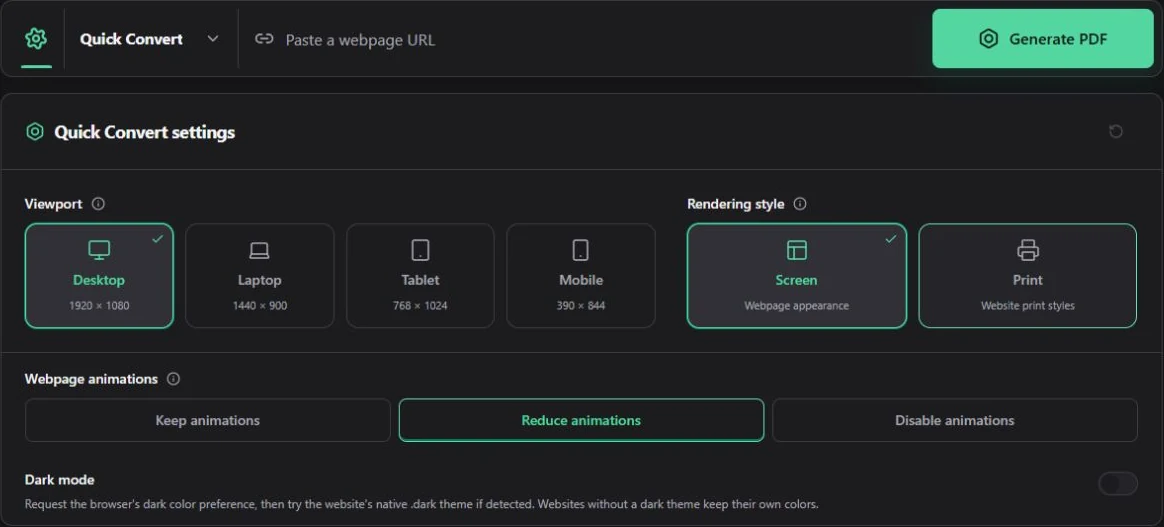
Open the settings panel to choose the viewport, rendering style, and color scheme. If you do not need a particular layout, keep the defaults.
Generate and check the PDF
Select Generate PDF and keep the tab open. When the preview appears, check the page width, the first and last sections, large images, and content that normally loads after scrolling. Then download the file.
Quick Convert settings
Quick Convert provides viewport, rendering style, webpage animation, and dark-mode settings. Defaults are Desktop, Screen, Reduce animations, and Dark mode off.
Viewport
The viewport is the remote browser window used to lay out the webpage before capture. Responsive websites may change navigation, columns, font sizes, images, and hidden content at different widths. The viewport changes the responsive layout; it does not emulate a particular phone, operating system, or browser profile.
| Name | Browser size | Description | Notes |
|---|---|---|---|
| Desktop | 1920 × 1080 | Uses a wide desktop layout. This is the default. | Best for wide tables, multi-column pages, dashboards, and desktop navigation. Very wide content may produce a wide PDF. |
| Laptop | 1440 × 900 | Uses a common laptop-sized browser window. | A useful alternative when Desktop leaves too much empty width or makes text appear small. |
| Tablet | 768 × 1024 | Requests the website's tablet layout. | Columns may stack and navigation may collapse. It does not reproduce touch behavior or a specific tablet model. |
| Mobile | 390 × 844 | Requests a narrow phone layout. | Useful for checking or saving the mobile presentation. Menus may remain collapsed because Quick Convert does not open them for you. |
Start with the viewport when the layout looks wrong
If the PDF contains a collapsed menu, stacked columns, clipped tables, or unusually small text, retry with another viewport before changing anything else.
Rendering style
| Name | Description | Notes |
|---|---|---|
| Screen | Uses the website's normal screen CSS. This is the default. | Usually gives the closest match to the ordinary webpage. |
| Asks the website to apply its print CSS before the full-page capture. | A site may remove navigation, change colors, hide controls, or reflow an article. Some sites have no useful print stylesheet and some hide content unexpectedly. The output is still a continuous screenshot PDF, not a paginated browser printout. |
Webpage animations
Reduce animations is the default. It asks sites that support reduced motion to use a steadier presentation. Keep animations preserves normal animation behavior; Disable animations attempts to reduce changes during capture. Script-driven animation, video, and canvas content may not stop completely, so check the result before downloading.
Dark mode
Dark mode sends a dark color-scheme preference to the webpage. It is off by default. Enable it when the source website supports a dark theme and you want that version in the capture.
This setting does not recolor the page itself. Websites that ignore the browser preference remain unchanged, and a site can still choose its own theme based on account settings, cookies, or page controls.
Reset Quick Convert settings
The reset button restores Desktop, Screen, Reduce animations, and Dark mode off. It does not clear the URL or affect a conversion that is already running.
Automatic preparation
The Quick URL to PDF process keeps the following preparation behavior automatic so that the settings panel stays short:
- The initial navigation is allowed up to 30 seconds.
- The page is scrolled in controlled passes so lazy images and deferred sections have a chance to load.
- Common cookie prompts, advertising containers, promotional popups, floating widgets, and fixed headers or footers are targeted for cleanup.
- The entire rendered page is captured after preparation and converted to a continuous, image-based PDF in your browser.
These rules are general heuristics. They cannot identify every custom popup, and they may occasionally hide an element that resembles an advertisement or fixed banner. Use Custom Convert when you need to control loading or automatic cleanup. Use Visual Editor when you need to inspect and hide a specific element yourself.
What Quick Convert does not provide
Quick Convert does not expose paper size, orientation, margins, page ranges, selectable text, link preservation, headers, footers, watermarks, document passwords, permissions, or metadata controls. Choose Custom Convert when the PDF needs conventional pages or document-level formatting.
Use a public webpage
The URL must be publicly available through HTTP or HTTPS. Pages behind a login, private dashboard, company network, paywall, one-time access link, CAPTCHA, or browser challenge may fail or may show a public sign-in page instead of the content you see locally.
How long webpages are captured
An image has practical dimension and memory limits. Long pages are captured in tiles, which are placed at their original positions on a single PDF page. The converter does not have to build one oversized image first. A short page with one screenshot uses the same output path.
Screenshot tiles are not PDF pages. Quick still targets one continuous page. If the combined dimensions exceed the current PDF output limit, all tiles are scaled down proportionally together. The bottom is not intentionally cropped, and height is not compressed independently. Very long pages may need substantial zoom to read.
The preview displays the images continuously. Check the joins and the bottom of the page: repeated sections, black blocks, or missing content are not expected consequences of tiling. Choose Custom when you need standard paper pages.
Example: saving a long article
For this Quick Convert example, start with Laptop or Desktop and Screen rendering. If columns and ads leave the article too narrow, try Mobile. If you need to copy text or print on A4, switch to Custom. A narrower viewport changes the website's layout rather than simply shrinking the same composition.
Common problems
The layout is too narrow or too wide
Choose another viewport. Desktop preserves wide layouts; Laptop often gives a more compact result; Tablet and Mobile intentionally trigger responsive layouts.
Images or sections are missing
The content may require a click, a longer delay, a signed-in session, or a scrolling pattern the automatic loader cannot reproduce. Custom Convert provides explicit loading controls, including extra wait time and deferred-content passes.
A popup or fixed bar remains
Quick Convert already attempts common cleanup, but site-specific overlays can remain. Custom Convert lets you switch cleanup categories individually. Visual Editor is the better choice when one exact element must be hidden.
Print looks worse than Screen
Return to Screen. Print depends entirely on the source site's print stylesheet; it is not automatically a cleaner version.
The conversion stops at a verification page
The converter does not solve CAPTCHAs or human-verification challenges. Try a public page that opens without interaction. Repeatedly submitting the same protected URL will usually produce the same result.
Usage and failed conversions
Quick Convert checks that at least 30 seconds of conversion time remains before opening the remote browser. A successful conversion deducts the browser session time actually used. A failed conversion is recorded but does not consume conversion time. See Accounts and usage for the current daily allowances and reset rules.
Related webpage to PDF guides
- Use Custom Convert for a paginated webpage PDF when you need paper size, margins, headers, watermarks, selectable text, or document security.
- Open the Visual webpage editor guide when automatic cleanup cannot remove one exact element.
- Check URL to PDF troubleshooting when images are missing, the wrong responsive layout appears, or a source website blocks conversion.
- Return to the online webpage to PDF converter to create another full-page PDF.