
Visual Editor
Select, hide, or restyle webpage elements before PDF export. Learn Visual controls, DOM selection, long-preview coordinates, and how extension editing differs.
The remote-browser, sign-in, and allowance rules below describe cloud conversion on the website. To save an open tab with the development extension, see the browser extension guide.
Visual Editor is the visual webpage editor for making targeted changes before creating a PDF. It is useful when automatic cleanup cannot identify one particular banner, when a collapsed section must be opened, or when an element needs a small layout adjustment.
Sign-in required
Visual Editor is available to registered users. Verify your email to receive the free account's daily conversion time.
Configure the webpage first
Visual Editor uses the same webpage to PDF layout, loading, cleanup, content, watermark, security, and metadata settings as Custom Convert. See the complete Custom Convert settings guide for those shared controls:
- Page layout covers viewport, paper size, margins, scale, rendering style, dark mode, and backgrounds.
- Page loading covers navigation timeout, extra wait, and deferred-content loading.
- Page cleanup covers cookie prompts, ads, popups, floating widgets, and fixed elements.
- PDF content and document settings cover page ranges, links, headers, footers, watermarks, security, and metadata.
Choose these settings before starting the editor. The cleanup choices are also reused by the editor's Clean action, and the document settings are applied when you select Generate PDF.
Start an editing session
A Visual Editor session keeps one remote webpage available while you inspect and change it. Complete these steps before generating the PDF from the visual webpage editor.
Select Visual Editor and enter the URL
Choose Visual Editor, paste a complete public http:// or https:// URL, review the shared settings, and start the conversion.
Wait for the editable preview
The service opens the page, applies the selected loading and cleanup rules, captures a full-page image, and builds a map of meaningful visible elements. This preparation stage has a three-minute overall limit.
Make focused changes
Use Select to inspect an element or Browse to operate an interactive control. The right sidebar changes with the selected element and contains the editing controls described below.
Generate the PDF
Review the preview and select Generate PDF. The current remote page is converted using the document settings chosen before the editor opened.
Clicking and selecting in a long preview
A long page may use several screenshot tiles, but the editor presents them as one continuous page. Click positions are mapped back to the live webpage using preview scale and scroll position. DOM selection and outlines use the same page information; you do not need to calculate offsets for individual images.
If an outline no longer matches its element after an interaction, use Refresh to update the preview and node map before editing again. Avoid making repeated changes against a stale screenshot. Use Reload only when you are ready to discard the current edits.
How extension Visual differs
Website Visual operates on a remote webpage. Extension Visual works directly on your current tab, with its tools in the browser side panel by default. It also supports selected-node export and has separate extension access checks. See extension Visual and selected-element export for setup and recovery instructions.
Select and Browse modes
The Visual Editor preview is a full-page screenshot of the remote browser. The two modes decide what a click on that visual webpage editor preview means.
Select
Use Select when you want to inspect, hide, or restyle an element. Clicking the preview chooses the smallest meaningful visible node at that position, draws a highlight around it, and opens its details in the Node tab.
Some pages contain several nested elements in the same place. If the preview chooses a child when you need its container, use the DOM tab to select the parent explicitly.
Browse
Use Browse when the page itself must change before capture. A click is sent to the corresponding interactive element in the remote page. This can open a disclosure, expand an accordion, follow a link, or activate a button.
Native select menus open an option list inside the editor. Choose an enabled option to apply it to the remote page. Other controls depend on the website's own behavior.
Browse can navigate away from the current page
After a navigation or a major page change, the old screenshot and node map may no longer match the live page. If the editor asks for a refresh, use Refresh before selecting or editing another element.
Toolbar actions
The Visual Editor toolbar sends focused actions to the live remote page and then returns an updated preview.
| Action | What it does | Use it when |
|---|---|---|
| Hide | Hides the currently selected node and removes its descendants from the editor's node map. | A specific banner, button, image, paragraph, or container should not appear in the PDF. |
| Clean | Runs the cleanup categories selected before the editor opened, then captures the page again. | A popup or fixed element appeared after the initial preparation. |
| Refresh | Captures the current remote page again without reloading its URL. | A click, select menu, animation, or delayed page update changed what should be visible. |
| Reload | Reloads the current URL, runs cleanup again, and rebuilds the screenshot and node map. | The page entered an unusable state and needs a clean start. Current visual edits may be lost. |
Hide is available only after an element is selected. Clean, Browse, and style changes operate on the live remote page, so wait for each action to finish before starting another one.
The Node sidebar
The Visual Editor Node tab is read-only. It helps you confirm that the selected outline represents the element you intend to change.
Document identity
- Tag shows the HTML element type, such as
header,section,button, orimg. - Selector shows the locator used to address that element in the remote page. Use the copy button when you need to keep it for troubleshooting.
Geometry
- Size shows the current rendered width and height in CSS pixels.
- Position shows the element's computed CSS positioning mode, such as
static,relative,absolute,fixed, orsticky.
Rendering
- Display shows the computed layout type.
- Visibility shows whether the selected element is visible through CSS.
- Overflow shows how content outside the element's box is handled. Different horizontal and vertical values appear separated by a slash.
- Margin and Padding show the computed top, right, bottom, and left values in that order.
Content preview
The final area shows a short text or accessible-name preview. It is provided only to help identify the node; Visual Editor does not edit the webpage's text.
The Style sidebar
The Visual Editor Style tab changes the selected element. Its fields start with the values captured from the live page. Edit the required fields, then select Update preview to apply the complete set and capture the updated result.
State locks
State locks preserve a CSS appearance without sending the corresponding mouse or keyboard event:
| Lock | Result |
|---|---|
| Hover | Keeps the element's :hover appearance. Useful for hover menus, highlighted links, and tooltips implemented with CSS. |
| Focus | Keeps its :focus appearance without moving keyboard focus. |
| Active | Keeps its :active or pressed appearance without clicking it. |
More than one state can be enabled on the selected element. Clear locks removes all three from that element. A state lock affects CSS appearance only; it does not open content that requires JavaScript. Use Browse for an actual click.
Dimensions
Width and Height replace the selected element's rendered CSS dimensions. A plain number is treated as pixels, so 320 becomes 320px. Standard CSS lengths such as 50%, 24rem, or auto can be entered when they make sense for that property.
Changing dimensions can reflow neighboring content. Refresh the preview and inspect later sections of the page before generating the PDF.
Layout
- Display supports
block,inline,inline-block,flex,grid, andnone. Choosenoneto remove the element from layout. Unlikevisibility: hidden, surrounding content can move into the freed space. - Visibility supports
visibleandhidden. Hidden elements keep their layout space. - Overflow supports
visible,hidden,auto, andscroll. Use it carefully:hiddencan clip content, whileautoorscrollcan leave content outside the captured area.
Margin and padding
Both groups have separate Top, Right, Bottom, and Left values.
- Margin changes space outside the selected element. Negative values can pull nearby content closer or overlap it.
- Padding changes space between the element's content and its border.
A plain number is converted to pixels. You can also enter a CSS length directly. Blank fields are applied as 0px, so leave the original value in place when that side should remain unchanged.
Style updates apply the whole panel
Selecting Update preview sends the displayed width, height, layout, margin, and padding values together. Review every field before applying the update.
The DOM sidebar
The Visual Editor DOM tab lists the meaningful visible elements discovered during the latest full capture. Expand a row to inspect its children, then select any row to highlight and scroll to that element in the preview.
Each row shows the HTML tag plus a short identifier, class, or accessible name where available. The node count describes the current editable map. A Limited badge means the page exceeded the capture limit, so some deeper elements are not listed. Refreshing or reloading rebuilds the tree from the current page.
The DOM tree is most useful when:
- overlapping elements make preview selection ambiguous;
- a whole container should be hidden instead of one child;
- a small or transparent element is difficult to click;
- you need to move between a component and its parent structure.
Change history and revert
The bottom of the Visual Editor sidebar records reversible hide, style, and state-lock changes. Expand the history to see when each change was applied and use Revert beside one entry to restore that element's previous state.
Reverting an entry does not replay the entire page from the beginning. Browse actions, native menu choices, cleanup, and navigation are not general undo steps. Reloading or navigating can also rebuild the page and clear the displayed history.
Editing time and session expiry
The Visual Editor sidebar shows the remaining editing window. While no action is running, the label identifies whether the limiting factor is Idle time or the account's remaining Quota. The countdown changes color during its final 30 seconds.
Each accepted editor action settles the elapsed editing time and returns an updated allowance. The inactivity window is then renewed when time remains. If the idle window expires, reopen the editor to start again; previous visual edits are cleared. If the account allowance is exhausted, return to task progress and wait for the allowance to reset or obtain more conversion time.
The editor uses a separate remote browser
It does not have the logins, cookies, extensions, or local network access from your personal browser. Use a page that can be opened independently from the public internet.
A practical editing order
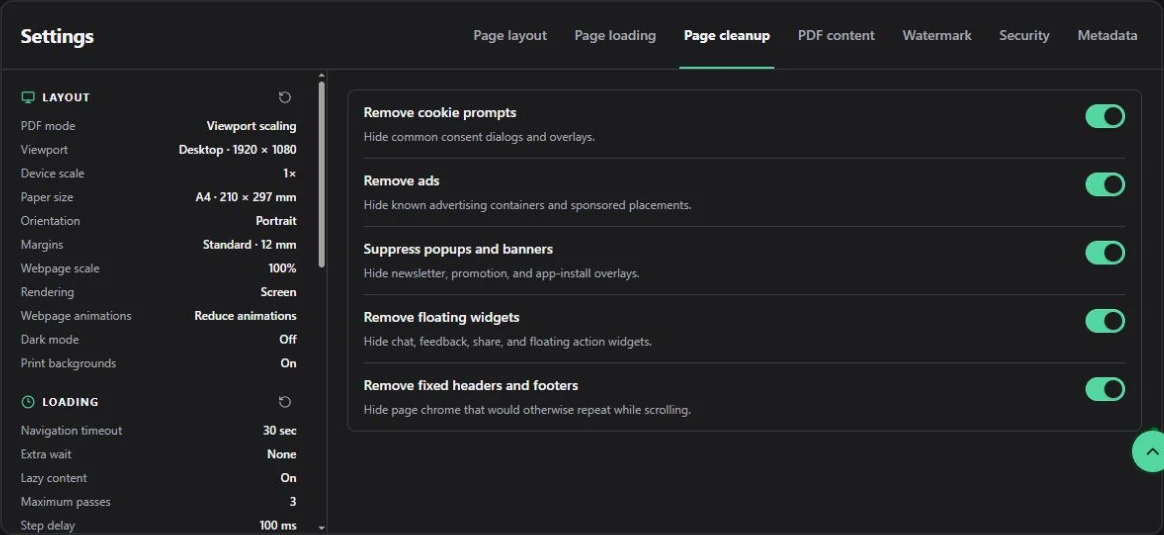
The actual cleanup panel, shown in English. Disable the category responsible for missing content before turning off every cleanup option.
For a predictable result, run automatic cleanup first, use Browse to expose the content you need, switch to Select to hide or restyle exact elements, and finish by checking the DOM tree and the full preview. Use Refresh after interactive changes and reserve Reload for abandoning the current page state.
If the page only needs standard cleanup or document settings, Custom Convert completes the same conversion without keeping an interactive editing session open.
Related visual webpage editor guides
- Read the Custom webpage to PDF settings guide for every shared layout, loading, cleanup, watermark, security, and metadata option.
- Choose the Quick URL to PDF workflow when the page needs no manual editing and a continuous capture is sufficient.
- Use Visual Editor troubleshooting when a selection no longer matches the live page, an action is rejected, or the editing session expires.
- Check conversion time and account access, or return to the online webpage to PDF converter to start a new Visual Editor session.