
How webpage to PDF works: printing, full-page screenshots, and automation
Compare browser printing, HTML to PDF, and full-page screenshots. See how Webpage to PDF handles screenshot tiles, PDF generation, and the extension’s debugger connection.
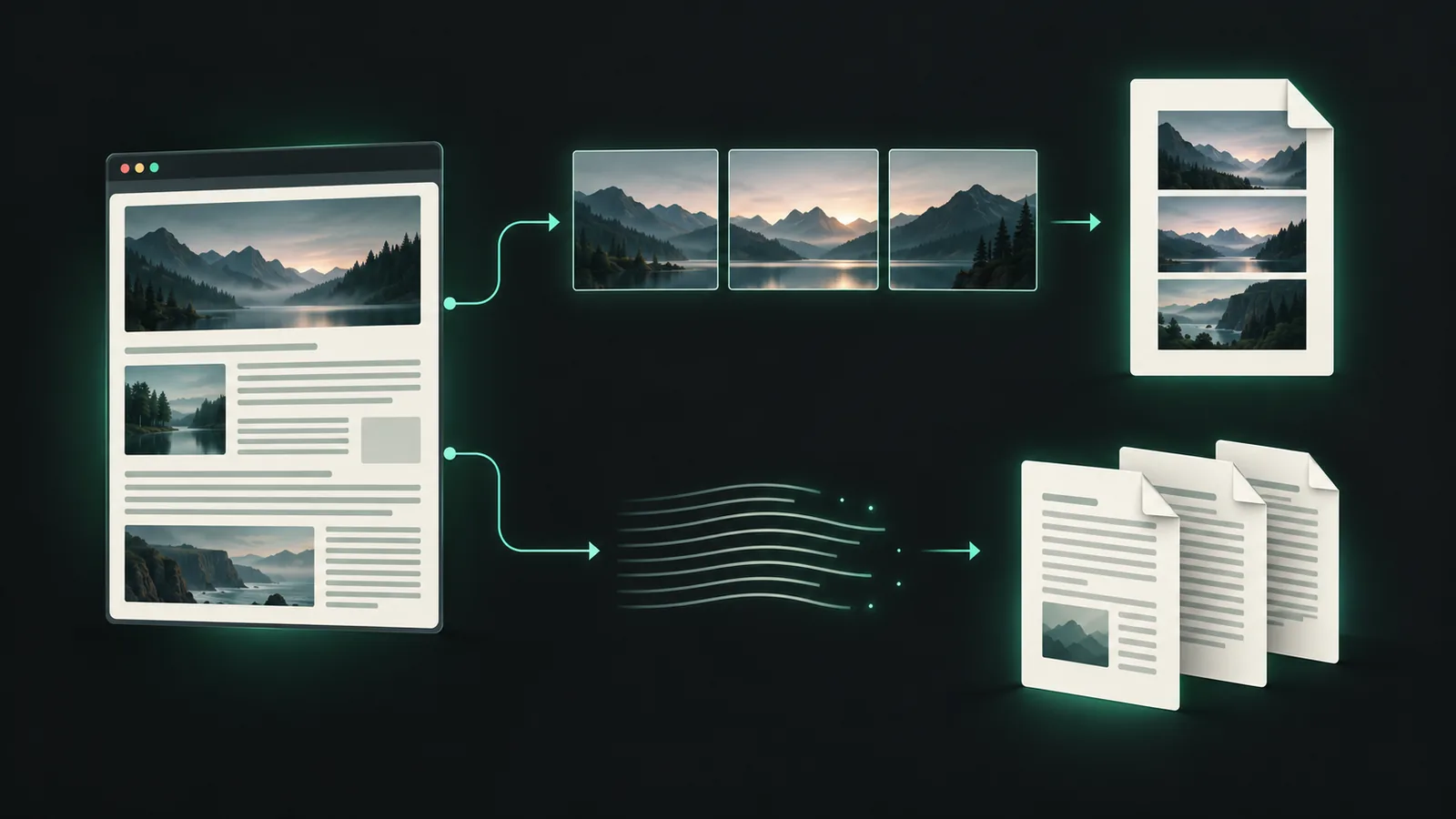
In theory, converting a webpage to PDF is simple: open the URL, wait for it to load, and save the result. Browsers already have a print function, so it should just be a matter of calling an existing API.
In practice, there are plenty of details to work through. Why does the printed page look different from the screen? Why can't you copy text from a screenshot after putting it in a PDF? Why does the bottom half of a long page go missing? These problems don't necessarily occur together; different situations can produce different results.
So how many ways are there to convert a webpage to PDF? I'll start with the common approaches and how they work, then explain Webpage to PDF's current conversion process. I'll also cover why the extension shows a debugger banner at the top of the browser and why you shouldn't close it during conversion.
1. Use the browser's Print function
This is the obvious starting point. Open a webpage, bring up Print, and choose “Save as PDF.” Ordinary text is usually selectable, and links may survive too. For the occasional article, that may be all you need.
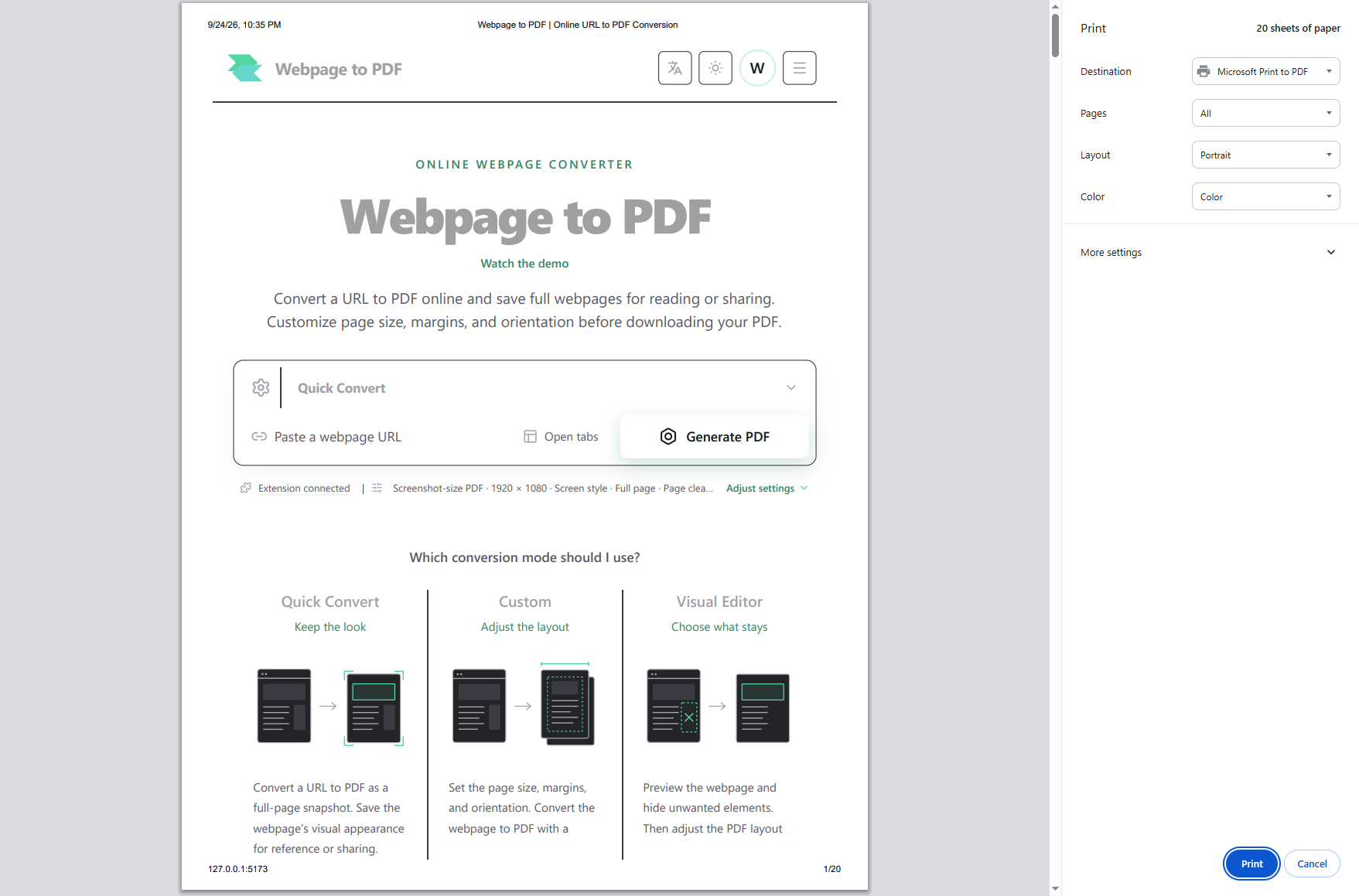
The result depends on how the site's styles handle printing. Some sites apply special print styles that change the page's appearance: hiding navigation and ads, replacing a dark background with white, or adjusting the article width. Those changes may make the content easier to read, but they can also leave the printed layout and content different from the on-screen page.
A less obvious case is a site whose main styles apply only to screen media. Switch to print and many rules stop matching. It can look like the stylesheet failed to load, even though the file downloaded correctly. MDN's printing guide explains how these styles work.
You can use screen styles for PDF output, but paper width, margins, and pagination still apply. A continuous webpage laid out on A4 paper has to break somewhere. Changing the media type doesn't remove that decision.
2. Turn HTML into an image, then put the image in a PDF
You'll often see html2canvas used for this. Its name makes it easy to assume it takes a screenshot of the browser. That's not quite what happens.
The library reads the DOM and styles, then reconstructs the image using the drawing rules it supports. The browser has already drawn the page; the library draws it again. This is manageable for a component or simple report you control. On an arbitrary website, unsupported CSS, cross-origin images, and canvas-size limits become harder to avoid. The html2canvas documentation describes this distinction.
A different approach is to ask the browser for a real screenshot and embed that in the PDF. That captures the browser-rendered page, making it a more direct way to preserve its appearance. Both approaches produce an image-based PDF, though, so the text in the result can't be selected or copied.
Webpage to PDF currently uses browser screenshots for Quick mode, then embeds those screenshots in a PDF. This preserves the rendered appearance in a continuous layout. Long pages need to be captured in tiles, however, because a single image can run into dimension and memory limits.
3. Automate a browser, or use a document layout engine
An online URL to PDF service can't rely on someone opening a print dialog for every request. Tools such as Puppeteer can control a browser, set the viewport, wait for loading, and call screenshot or PDF APIs. Webpage to PDF's cloud conversion needs this kind of browser processing. Puppeteer's PDF API still uses the browser's printing capabilities underneath.
Automation handles the repetitive operations. You still have to decide when the page is ready. Some sites keep sending analytics requests. Some images load only when scrolled into view. Some popups appear after a delay. Wait for everything and the job may never finish; don't wait at all and content may be missing.
Dedicated HTML-to-PDF and document layout engines are another option. They can be a good fit for invoices, statements, and reports built from controlled templates. CSS and JavaScript support varies, however, so don't assume that an engine suited to your invoice template can also run any interactive website.
Here's how the options compare:
| Approach | What it does well | What to watch for | Typical use |
|---|---|---|---|
| Browser Print | Built in; usually preserves text and links | Print CSS and pagination can change the layout | Saving an occasional article, printing a webpage |
| DOM to canvas | Runs in webpage JavaScript; convenient for your own components | Reconstructs styles; cross-origin assets and canvas limits matter | Simple reports, controlled components |
| Full-page browser screenshots to PDF | Preserves the rendered appearance in a continuous layout | Text is an image; long pages need separate captures | Design references, visual archives |
| Automated browser PDF output | Repeatable, with control over print settings | Loading, login state, and browser cleanup need handling | Online URL to PDF services |
| Dedicated layout engine | Good control over templates and pagination | May not support an arbitrary site's CSS or JavaScript | Invoices, statements, template-based documents |
These methods can be combined. An automated browser can print or take screenshots, and a browser extension can do either too. Whether the result contains images or text depends on the output method it actually uses.
4. How Webpage to PDF works under the hood
Webpage to PDF currently uses two ways to open and process webpages: a cloud browser and the local browser through the extension.
For cloud conversion, the website backend validates the request and coordinates the job, then the browser service opens the URL. That browser isn't running on your computer and doesn't automatically inherit your login state. The same address can show content in your browser and a login form in the cloud.
Local conversion works on your selected tab, subject to browser permissions and page restrictions. If you've signed in or expanded some content, that page state can be the starting point. A remote browser doesn't have to open it again. Local rendering doesn't require sending the page to the cloud browser service, although account features still make their own network requests. It doesn't mean the entire extension works offline.
The extension sends Chrome DevTools Protocol, or CDP, commands through chrome.debugger. Those commands control viewport size, screen or print media, screenshots, and PDF output. This is why the debugger banner appears.

5. Why does Quick mode split screenshots into tiles?
Quick aims to preserve the whole page's appearance in one continuous PDF page. A short webpage can fit in one screenshot. On a very long page, image dimensions and memory use become a problem. A capture may have missing, repeated, or blank areas, so a successful API response alone isn't enough.
Quick therefore measures the document and captures it in bounded regions. Each image comes with its position and dimensions. The PDF generator places those images directly at the corresponding locations. It doesn't first stitch them into another enormous bitmap, which would bring back the size limit that splitting was supposed to avoid.
For example, suppose a page needs three captures. The second image begins at a particular vertical coordinate in the webpage, so it belongs after the first image in the PDF. Three images don't have to mean three PDF pages.
The PDF page's dimensions need a limit too. The current implementation uses a 14,400-point page-size cap. If either dimension exceeds it, the page is scaled uniformly, including every image's dimensions and position. Shrinking the height without shrinking the width would distort the page. This cap is a compatibility choice in the implementation, not a universal limit for every PDF specification and viewer.
Tiling doesn't fix everything. A virtualized list may remove off-screen elements from the DOM, or the page may change between captures. Splitting addresses oversized individual screenshots; it doesn't provide unlimited memory or make every kind of page stable.
6. How do Custom and Visual produce a PDF?
Custom also takes screenshots, but those are for the preview. The final file comes from browser printing: the extension uses Page.printToPDF, and the cloud service uses Puppeteer to obtain the browser's PDF output. Supported document settings are then applied in further PDF processing.
It's easy to confuse the two. Splitting Custom's long preview into several images doesn't mean its final PDF should become an image collage. Ordinary webpage text can usually remain text, while the browser handles paper layout and pagination. Text already inside an image or canvas doesn't automatically become selectable.
Visual adds editing before export. It applies the conversion viewport and rendering mode, lets you hide elements or change styles, then exports the edited page. The extension edits the live local page. The website editor controls a remote page and displays screenshots and DOM information.
Even when the website preview contains several image tiles, DOM coordinates still belong to the whole webpage. Selecting an element requires mapping the pointer position through the preview container's scale and scroll position into page coordinates. The vertical coordinate mustn't restart at zero when the pointer reaches the second image.
The extension also supports exporting a selected node. It prepares the edited selection as the root of a separate document, rather than cropping a rectangle from a screenshot. Removing the original ancestors can affect styles and width, so the result needs to be checked as a separate layout.
7. What steps run between opening the page and downloading the PDF?
That covers the underlying methods. In practice, loading and restoration also need to be part of the process. The flow is roughly as follows:
- Open or acquire the webpage. Cloud navigation and resource waiting share a timeout budget. Failure to open the document is an error; if the document has opened but resources haven't settled, reaching the budget can allow processing to continue. A user-configured extra delay is separate.
- Apply page settings. Set the viewport and rendering mode, then apply the configured color scheme, animation handling, waiting, lazy-content preloading, and cleanup. Cleanup uses detection rules, so it can't guarantee coverage of every site's popups.
- Capture the preview. Measure the prepared webpage and return image tiles with coordinates. Quick also uses these images for the final file.
- Generate a source PDF. Custom and Visual invoke browser printing to obtain the PDF for further processing.
- Restore and release. The extension attempts to undo temporary changes and disconnect its debugger session. The cloud service releases its remote browser resources.
- Finish PDF processing. Quick places its images on one page. The other modes apply the relevant settings to the source PDF, then present the result for download.
If a step fails, normal progress stops and an error is shown. Internally, the system attempts to clean up: a screenshot error isn't a reason to leave the user's display settings changed. Recovery after an error is separate from normal progress, though. Successful cleanup mustn't mark later conversion steps as completed when they never ran.
8. Why shouldn't I close the debugger banner?
During local conversion, Chrome shows a banner saying the extension has started debugging. It tells you that the extension is controlling the tab through a debugging connection. You don't need to open developer tools yourself. The Chrome debugger documentation covers the API.
The problem is the banner's Cancel button. Clicking it makes the browser disconnect immediately. If a screenshot or display-setting command is in progress, it can be interrupted before the extension gets to its normal restoration sequence.
This has happened in testing: interrupting capture left an abnormal viewport or a missing scrollbar, and refreshing the same tab didn't restore it. Whether it happens depends on the browser version and the timing of the interruption. It doesn't mean every click on Cancel will cause the problem.
To stop conversion, use Cancel in the sidebar. That gives the extension a chance to stop the job and run cleanup. Leave the top banner in place while browser processing is underway. The warning doesn't mean the underlying issue has been fully fixed, or that every failure can be recovered automatically.
If the display is already wrong, use “Restore page display” when the extension offers it. If that doesn't help, open the same URL in a new tab and check it before closing the old one. The new tab has its own display state, but unsaved form input from the old page won't carry over.
You don't need to learn these APIs just to save a webpage as PDF. Use Quick for appearance, Custom for paper layout and selectable text, and Visual to edit first. When a result looks wrong, check whether content failed to load, capture went wrong, or print styles changed the layout. That will tell you more than repeating the same conversion.