
Webpage to PDF is live: three ways to save a webpage as PDF
Meet Webpage to PDF, an online URL to PDF converter. Learn when to use Quick, Custom, or Visual, how free conversion time works, and which pages the service can access.
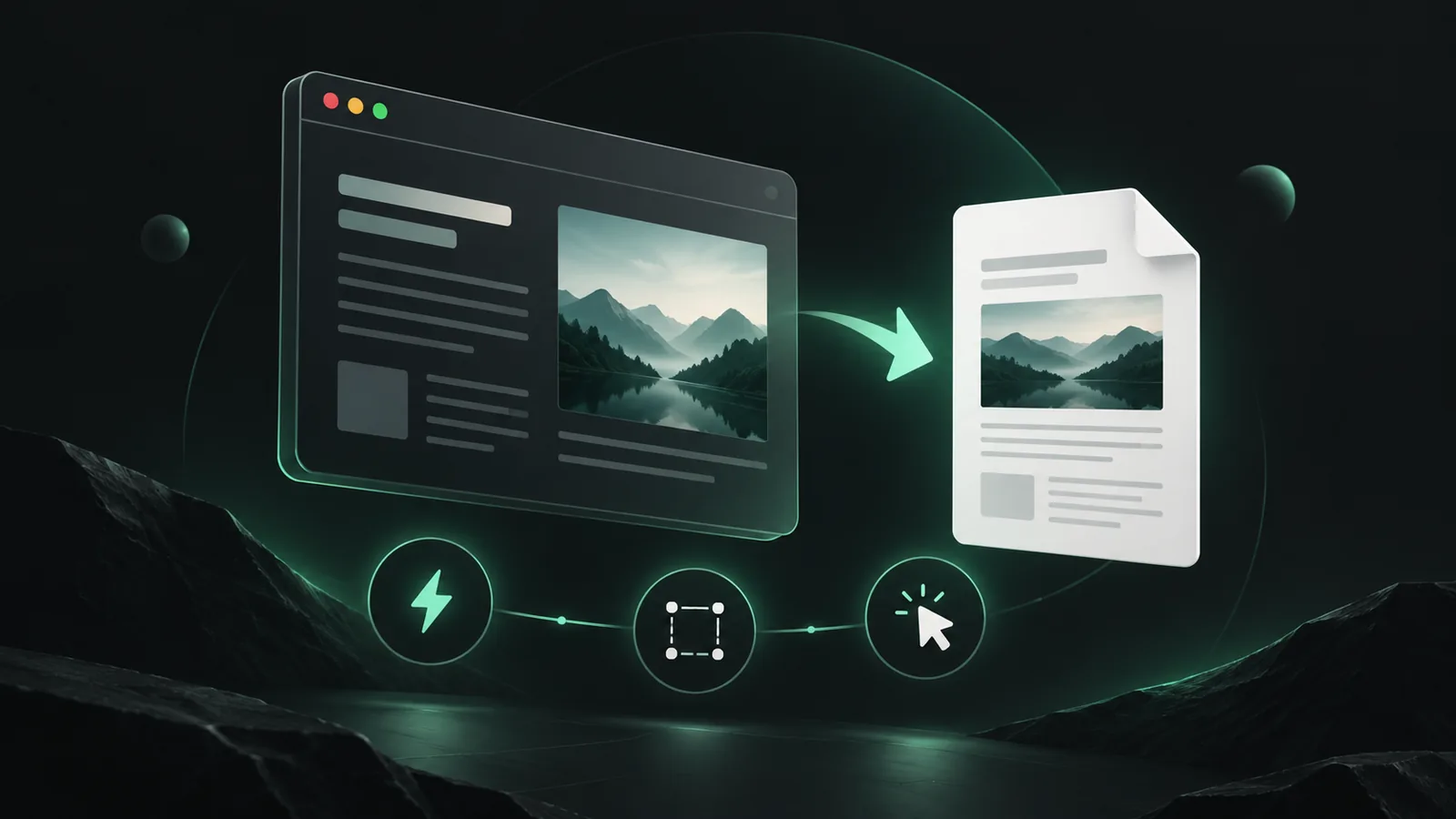
Your browser can already save a webpage as a PDF. Open Print, choose “Save as PDF,” and you're done. Try it on a few sites, though, and the results vary: an article splits across too many pages, a background disappears, or a large ad ends up beside the text. Getting a PDF is easy enough. Getting the document you wanted takes a little more thought.
Webpage to PDF is now live. You can enter a public webpage address on the homepage and convert it directly. Here's what the tool does, which mode to choose, and a few limits worth understanding before you start.
1. Why have three ways to convert a webpage to PDF?
Suppose you're saving a homepage as a design reference. You probably want it to look like the website from top to bottom, without a page break every few sections. If you're saving a technical article to print, the priorities change: paper size, margins, and page breaks matter, and being able to copy the text would help too.
Those jobs don't need the same output method. The site offers three modes: Quick Convert, Custom Convert, and Visual Editor.
Quick: keep the appearance of the whole page
Quick Convert takes screenshots of the webpage and places them in a PDF. It's useful for long pages, an article's original layout, or website design references. The result is one continuous PDF page.
“Whole page” includes the content below the visible area, rather than just what's on your screen. You can choose a desktop, laptop, tablet, or mobile viewport, and use screen or print styles. Dark mode depends on support from the source website; enabling it doesn't turn every site dark.
There's one catch: the text in a screenshot is still part of an image. Quick doesn't recognize those pixels as text, so you generally can't select the words in its PDF, and the original webpage links aren't clickable. If copying the article matters, try Custom.
Custom: lay out a document for reading or printing
Custom Convert uses the browser's PDF output. It defaults to A4 paper, with adjustable size, orientation, and margins. Ordinary webpage text can usually remain text in the PDF, making this a better fit for articles, reports, and handouts.
There are more settings here, but they fall into two groups:
- How the webpage is rendered: viewport size, screen or print styles, backgrounds, dark mode, scale, loading delays, and cleanup for common ads, popups, and fixed elements.
- How the PDF is produced: paper size, margins, page ranges, headers and footers, watermarks, link handling, document permissions, and metadata.
You don't need to change every field. Start with the defaults, inspect the result, and adjust the setting responsible for anything that looks wrong.
Also, the webpage screenshot preview and the final PDF serve different purposes. The screenshot shows the loaded page; the PDF still goes through paper layout. To check where page breaks actually fall, look at the finished PDF.
Visual: edit the webpage before exporting
Automatic cleanup isn't always specific enough. You might want to remove the recommendations beside an article while keeping everything else. Visual Editor lets you select that element, hide it, or change its styles.
The website opens the page in a remote browser and displays its screenshot and page elements in the editor. After an operation, the preview updates so you can check the change before generating a PDF. The remote page stays open while you edit; each operation acts on that same page rather than starting a new conversion from its URL.
The website's Visual Editor requires a free account. You can apply paper settings, watermarks, document permissions, and other options to the final document. Quick and Custom can be tried without signing in.
2. Can it convert a page I'm signed in to?
Cloud conversion opens your HTTP or HTTPS URL in a remote browser. It receives the address, not the cookies, passwords, or signed-in state from your computer.
For example, an order-details URL might show your order in your own browser but show a login form on another computer. The cloud service can't retrieve the order from that URL alone either. This online URL to PDF service is for public webpages. It doesn't support login-protected content or private networks, and it can't complete CAPTCHAs or human-verification checks for you.
JavaScript can run, and the service can wait for content, preload lazy-loaded images, and remove common popups according to your settings. But sites load content in different ways. An infinite feed has no clear end, and a video can't become a playable video in a static PDF. If content is missing, the troubleshooting guide can help you check loading delays and the site's own print styles.
3. How does the free allowance work?
Cloud usage is measured by the browser time used for successful jobs, not by the number of PDF files. A simple page and a long page that waits for many resources naturally take different amounts of time.
The current daily allowances are:
| Account | Conversion time per day | Available modes |
|---|---|---|
| Signed-out visitor | 10 minutes | Quick, Custom |
| Verified free account | 30 minutes | Quick, Custom, Visual |
| Pro account | 60 minutes | Quick, Custom, Visual |
The service checks the remaining allowance before starting and records actual processing time after a successful job. Service failures don't consume conversion time. See Accounts and conversion time for the rules, or Pricing to compare plans.
For an occasional webpage-to-PDF conversion, start with Quick. Use Custom if you need to print the result or copy its text, and Visual if you need to remove a specific part of the page first. Trying a page you know is an easier way to see the difference than studying every setting. Completed changes will be recorded in the changelog.